How to set up and use Constructable MCP
Last updated: May 22, 2026
Break ground on a new way to manage construction. Constructable for Claude turns project data into a conversation — ask what's open, what's overdue, what's new on a drawing, or what happened in the field yesterday, and get a straight answer in seconds. Connect your Constructable account to pull project status, RFIs, submittals, and daily reports straight from chat, no digging required.
Constructable MCP allows you to access your Constructable Project data from your favorite AI assistant (e.g. ChatGPT, Claude, Gemini, Copilot, etc.)
For ChatGPT Setup:
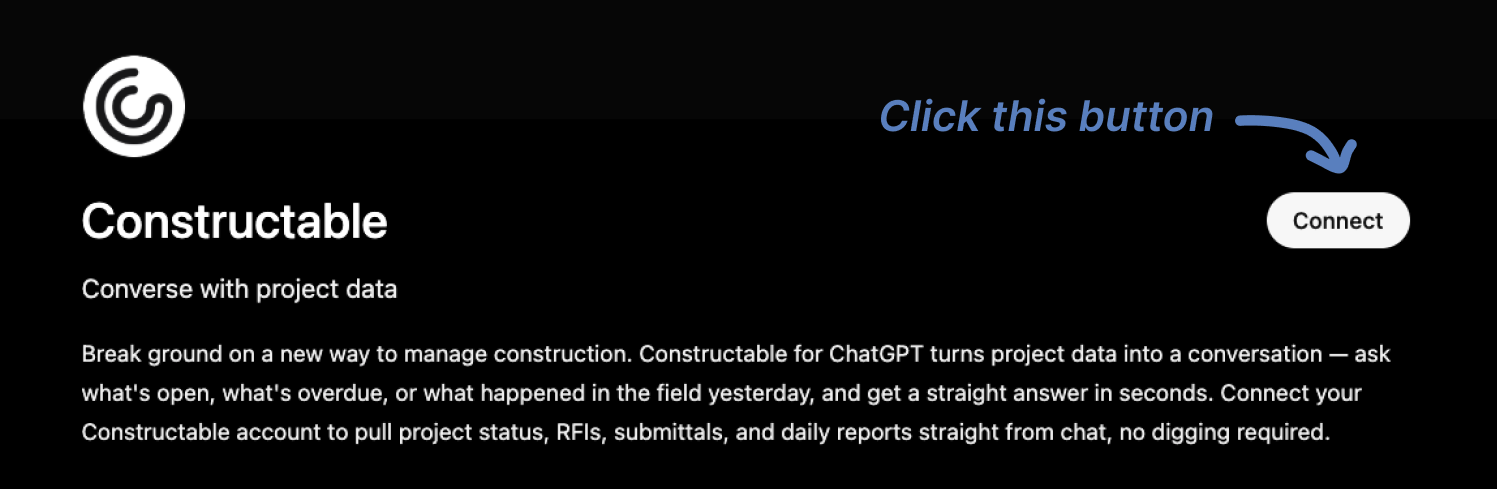
Go to our ChatGPT App listing at the following link: https://chatgpt.com/apps/constructable/asdk_app_6a10b761b5c081919958e281f32ff7e9
Click "Connect" and log in to your ChatGPT account if necessary
You'll then be redirected to Constructable. Log in if you haven't already, then click "Confirm" to grant access to ChatGPT.
Constructable will close and you should see a "Connection Successful" message in ChatGPT.
You can now click "Start Chat" and begin asking or prompting your Constructable from within ChatGPT!
For Claude Setup:
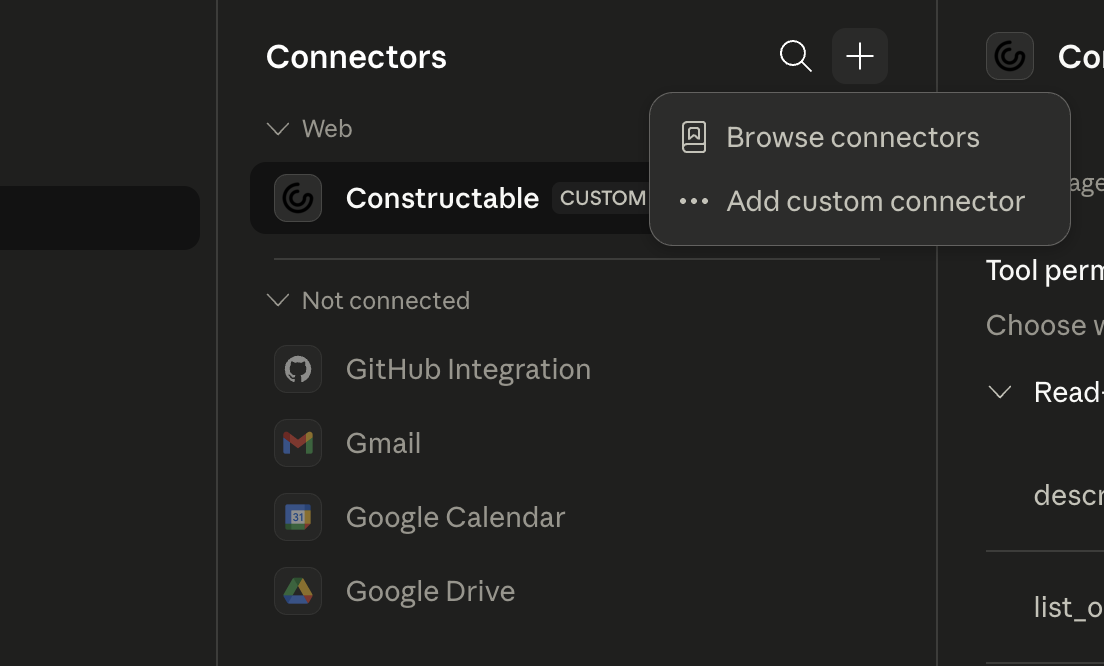
Open the "Customize" menu
Click "Connectors"
Click the "+" plus button
Click "Add Custom Connector"
Enter "Constructable" in the Name field
For the Remote MCP Sever URL, use "https://agents.constructable.ai/mcp"
Click "Add"
We suggest that you then click the Constructable connector and set the "Read-only Tools" setting to "Always Allow" (so that you don't have to grant the MCP permission to read things every time) but leave the "Write/Delete Tools" set to "Needs Approval" to prevent unwanted executive/destructive actions without your explicit approval.
Open Claude and start asking or prompting your Constructable Project data!
For Constructable MCP Support:
Reach out to us directly at support@constructable.ai for any additional help, questions, or feature requests.