Notification Preferences
Last updated: April 24, 2026
Overview
Notifications help keep you informed about activity across your projects without overwhelming your inbox. This article explains how to customize notification settings across all projects or for individual projects, adjust notification frequency and timing, and manage workflow-specific alerts so you only receive what’s relevant to you.
Account-Level Notification Settings
You can change your notification settings across projects by going to your account. Access your user profile from anywhere by clicking on your name in the lower left corner of your screen. Or, if your sidebar is collapsed, select your initials in the same location.
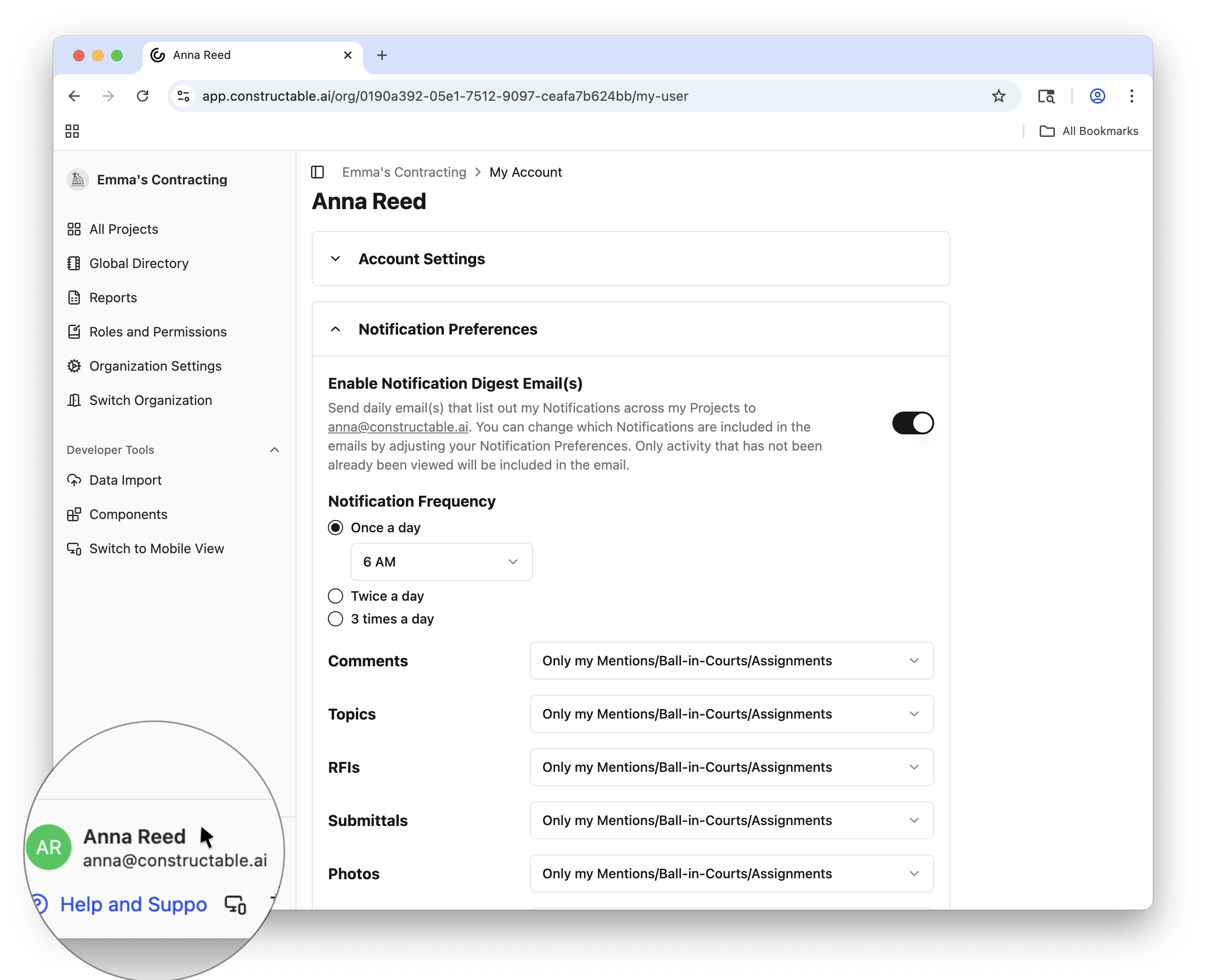
From here, you can toggle email updates on or off, set how often you receive notifications, and at what times of the day you wish to receive notifications.
You can also adjust your notification settings by workflow, choosing to be notified for All Activity or Only my Mentions/Ball-in-Courts/Assignments. Turn off notifications entirely for a specific workflow by selecting Do not notify me.
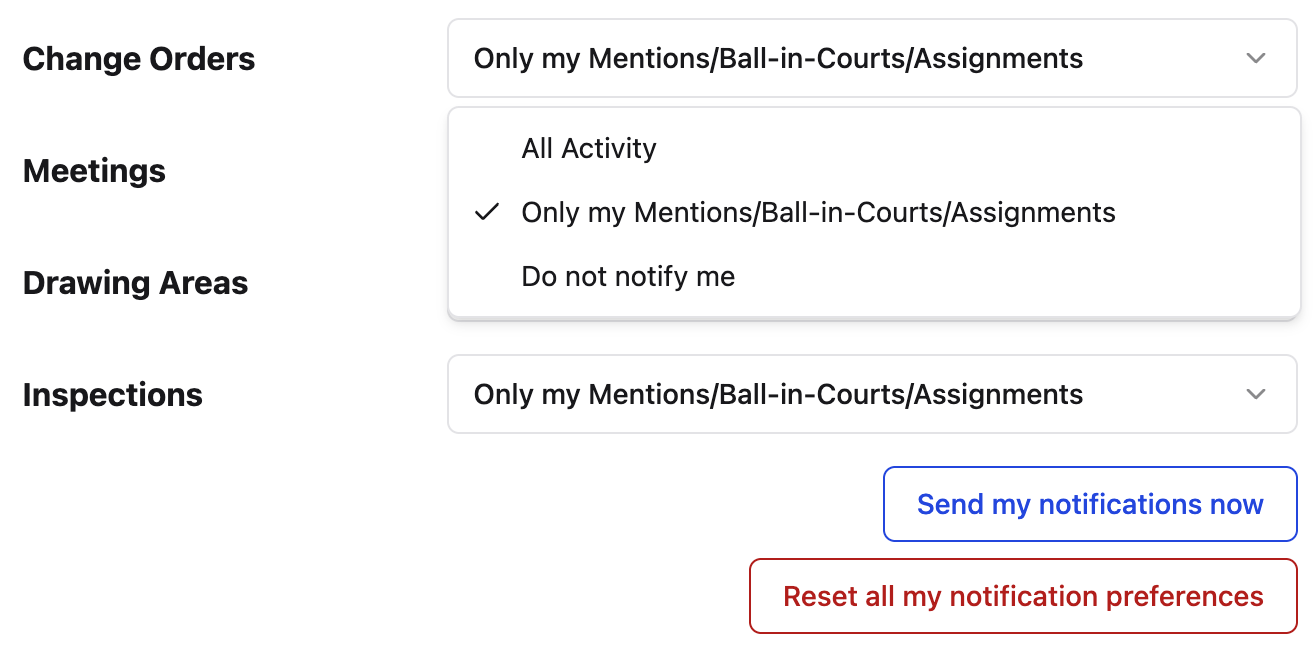
At the bottom of the list of workflows sits the Send my notifications now button, which lets you receive all notifications immediately, rather than waiting for the pre-appointed time you usually receive them.
Below that sits the Reset all my notifications preferences button. This will reset your notification preferences to the default “Only my Mentions/Ball-in-Courts/Assignments.”
Project-Level Notification Settings
You can also change your notification preferences per project. The above instructions will change your settings across all projects, but if you'd like to change preferences on a project-by-project basis, go to your Project Home page, located under “Management Tools” in the sidebar.
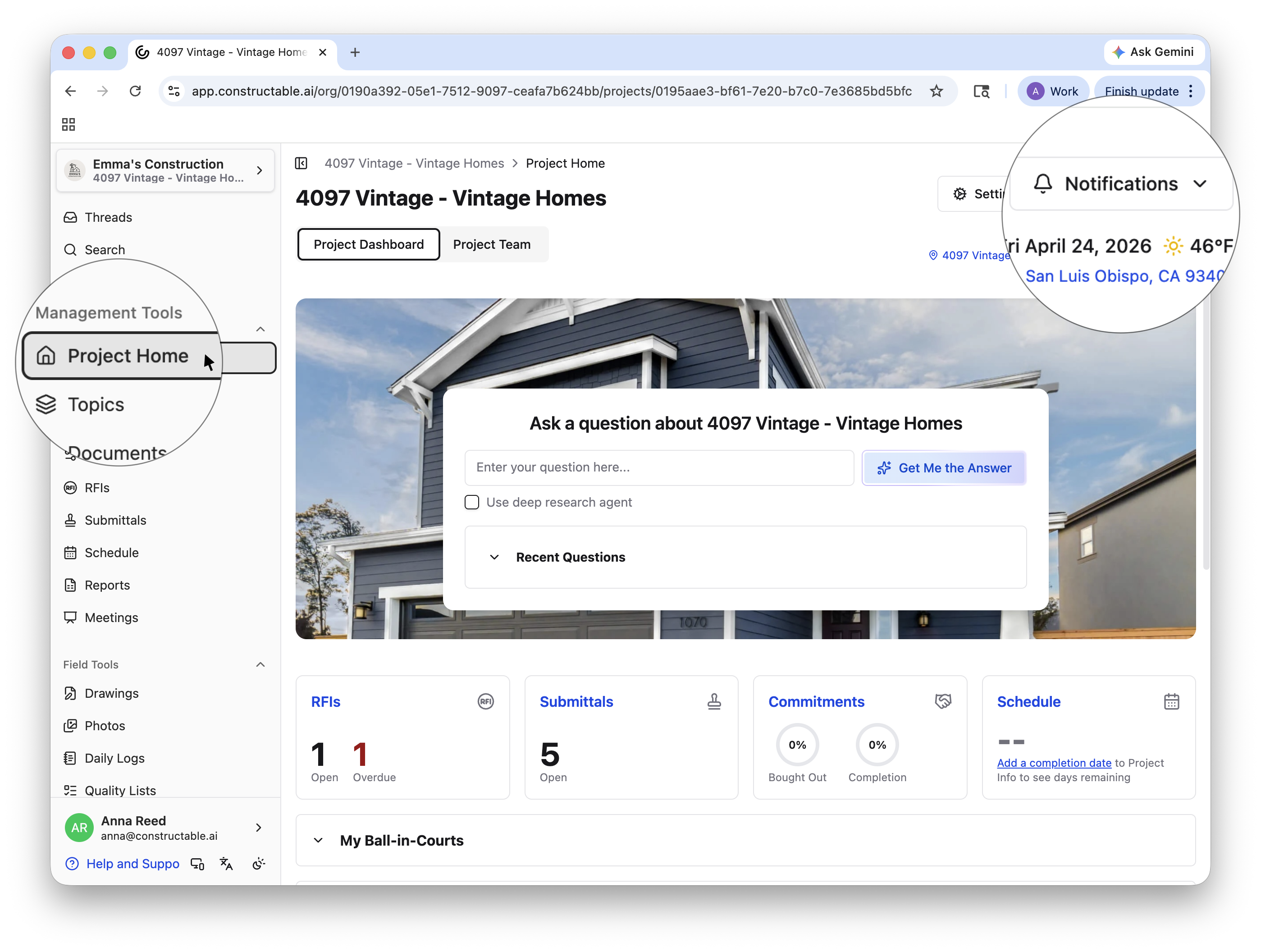
Notice the Notifications drop-down menu in the upper right corner. Click this to edit your notification preferences by workflow, just as you would in your user profile, outlined in the previous section.
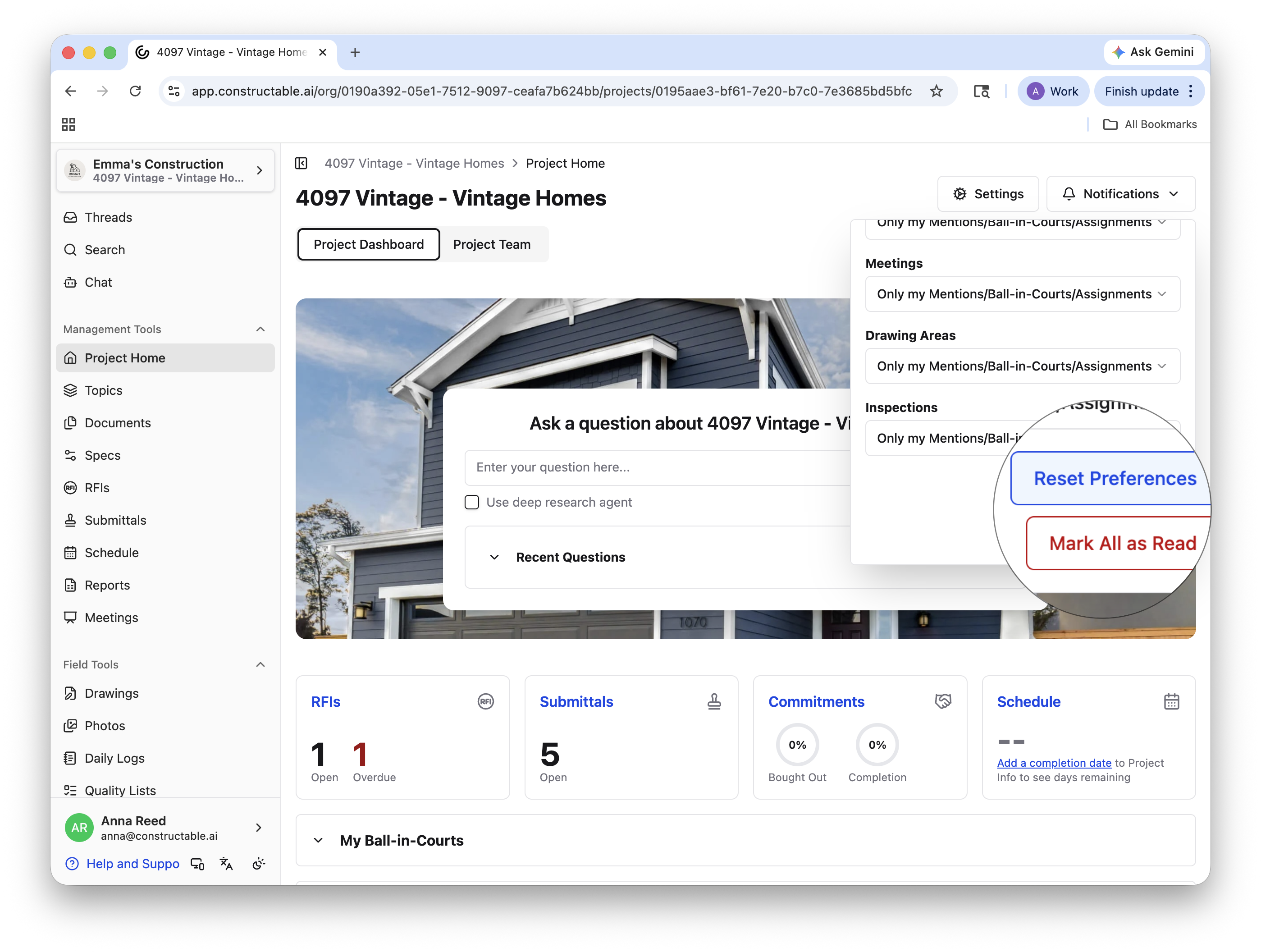
Reset Preferences to those outlined in your user profile by scrolling down and selecting the corresponding blue button. You can also Mark All as Read here.
Workflow-Level Notification Preferences
You will notice the notification bell icon scattered around Constructable. This icon lets you edit specific workflow notifications within that workflow and quickly navigate to the larger notification preferences.
See below a video from the Drawings workflow that allows you to quickly edit and access both Drawings notifications and redirect you to the All Projects preferences or Project Specific settings.
Frequently Asked Questions
What does "Only my Mentions/Ball-in-Courts/Assignments" mean?
This setting limits notifications to items that directly involve you—such as when you’re mentioned, assigned responsibility, or have an item waiting on your action.
If I reset my notifications preferences, what will they reset to?
Resetting notification preferences in your user profile will reset them to the default setting of “Only my Mentions / Ball-in-Courts / Assignments.” Resetting project notifications returns them to the default setting you have outlined in your user profile.
What time zone are notification delivery times based on?
Notification timing is based on your user account’s time zone, which can be changed in your user profile settings under “Account Settings.”
Will turning off email notifications stop in-app notifications as well?
No. Email notifications and in-app notifications are managed separately. Turning off email notifications will not disable in-app notifications.