Using Daily Logs
Last updated: February 7, 2026
Overview
Daily Logs help you keep track of everything that happens on the job site each day. From crew activity and equipment use to weather conditions and project delays, the Daily Log provides an easy way to capture important details as the work happens. By keeping consistent Daily Logs, teams ensure transparency, support accurate reporting, and create a reliable reference for future project decisions.
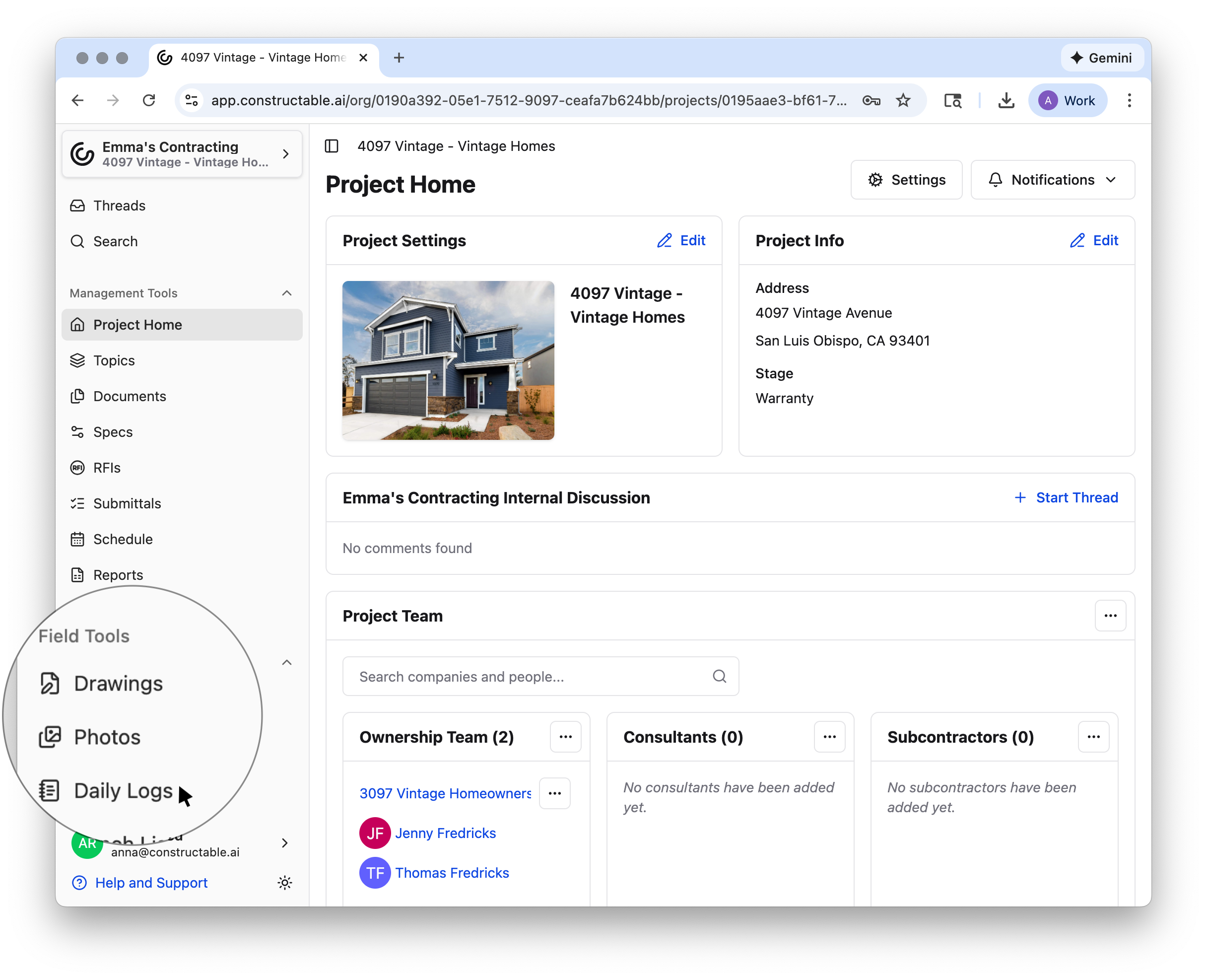
The Daily Logs can be found in the sidebar under Field Tools and directly below the 'Photos' tab.
Organization
The main Daily Log page is organized by a Sunday-to-Saturday week, with individual logs listed in chronological order from most recent to least recent, so the newest information is always at the top!
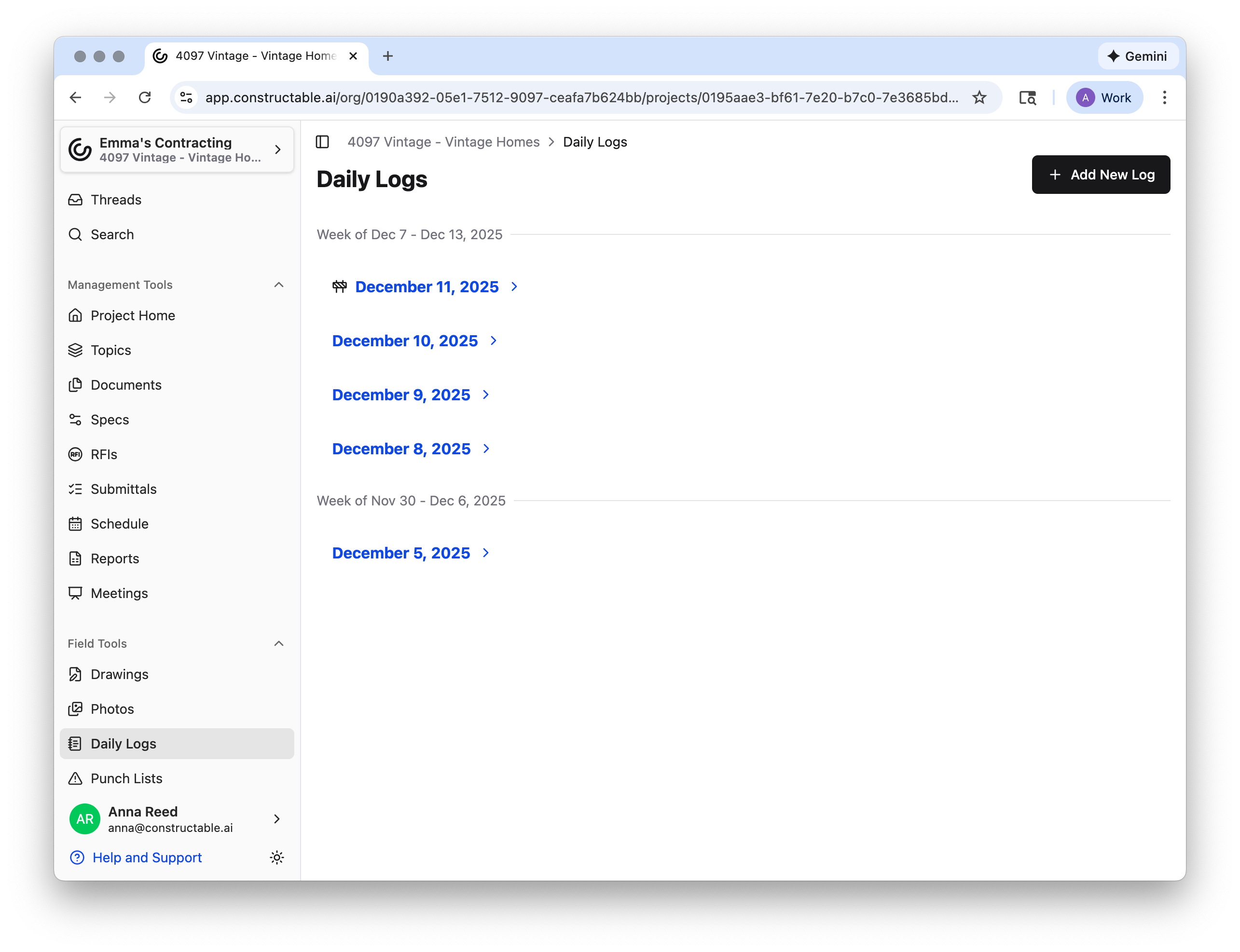
To create a new Daily Log, select the + Add New Log button in the top right corner. To view or edit a pre-existing Log, click on the blue date. From there, you can easily navigate to the previous or next log, view details from that day’s goings on, and add, delete, or edit any information that’s already been input.
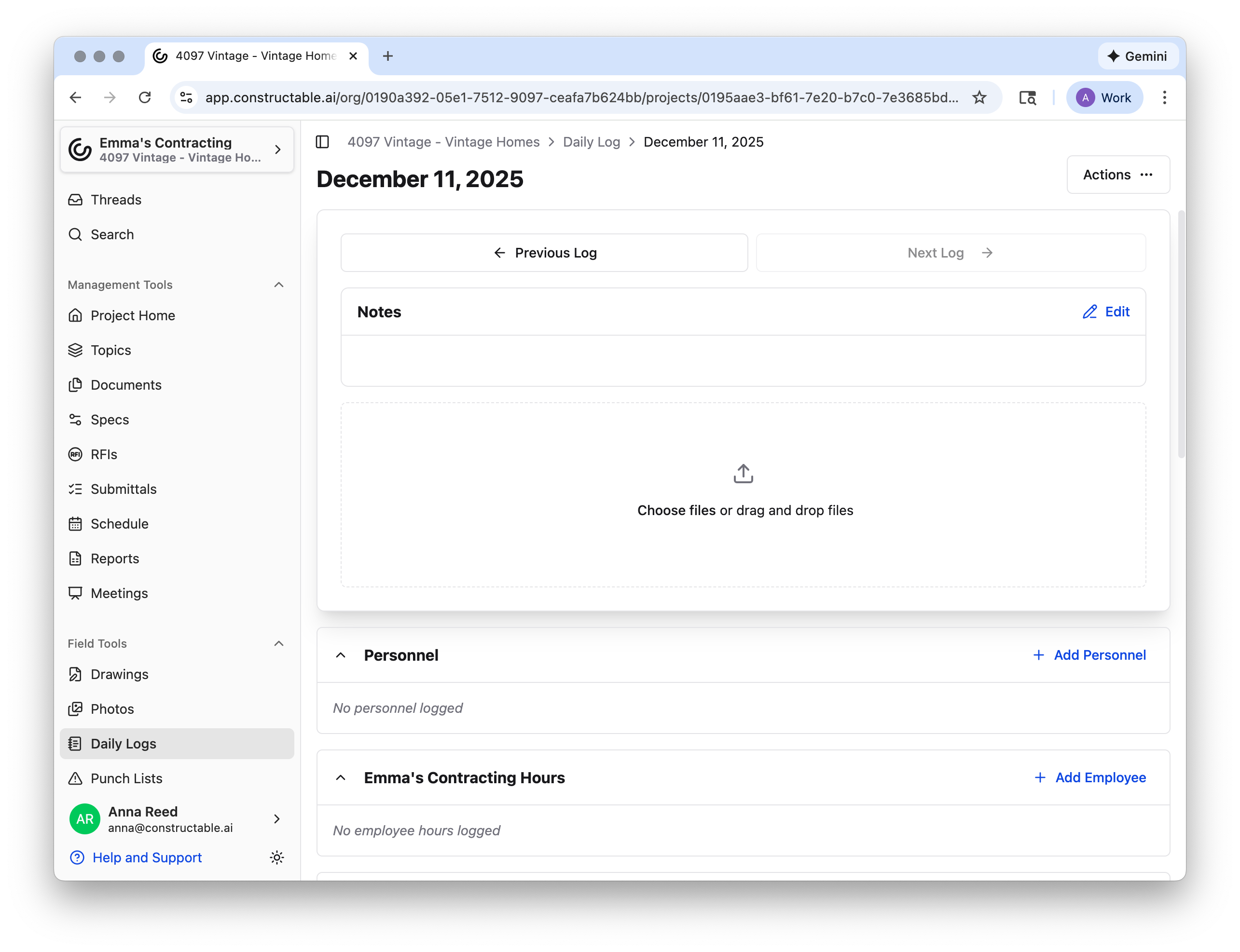
The default structure of the Daily Log is split into sections: Notes > Personnel > Your Organization's Hours > Equipment > Deliveries > Dumpsters > Inspections > Weather > Delays
Note: The Activity Log that appears underneath the Delays section can be found on multiple pages throughout Constructable and allows you to monitor who’s been doing what within each page.
Sections Breakdown
Notes
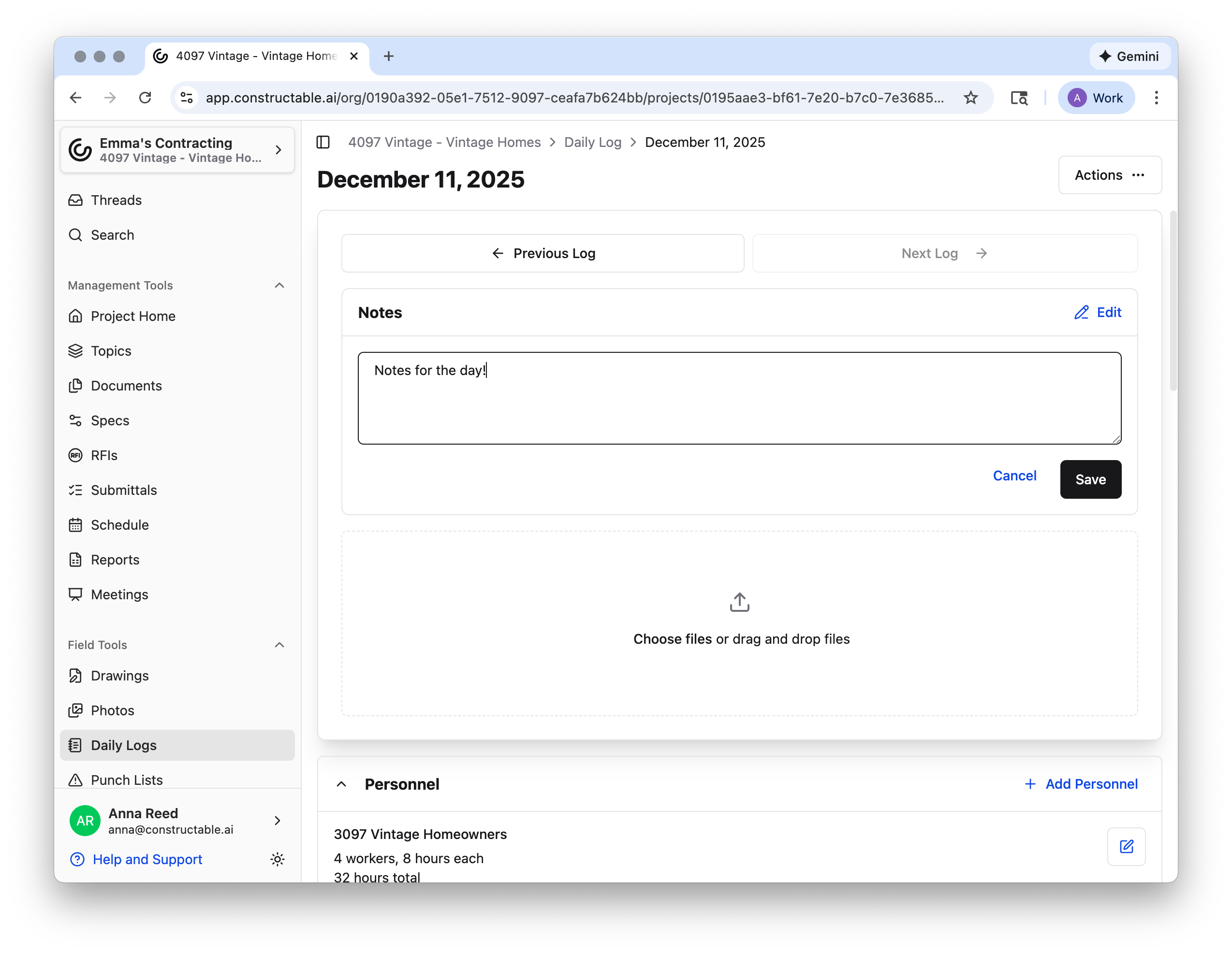
In the Notes section, select Edit, and you can include any overall notes from the day. Just make sure to Save them! You can also choose or drag and drop files in this section.
Personnel
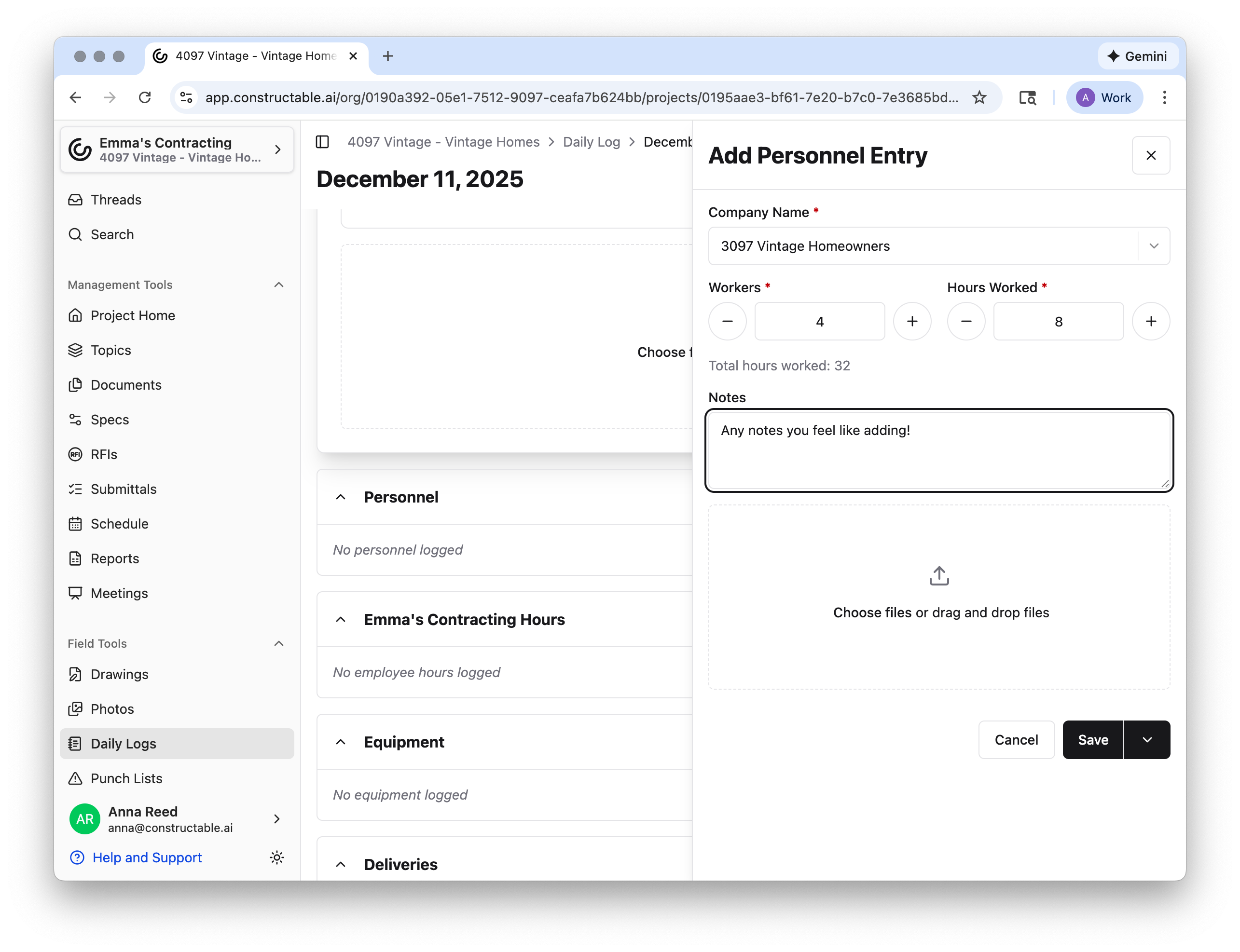
In the Personnel section, you can add any personnel working on the project for that day by clicking the + Add Personnel. A Personnel Entry will then ask you to select or search a company name. After selecting a company name, you can input the number of workers and the number of hours worked.
Note: The total hours worked will automatically update after you input the individual hours!
You can also include any notes or files needed for the Personnel section here. Make sure to Save or ∨ Save and Add Another if you have more personnel entries to make.
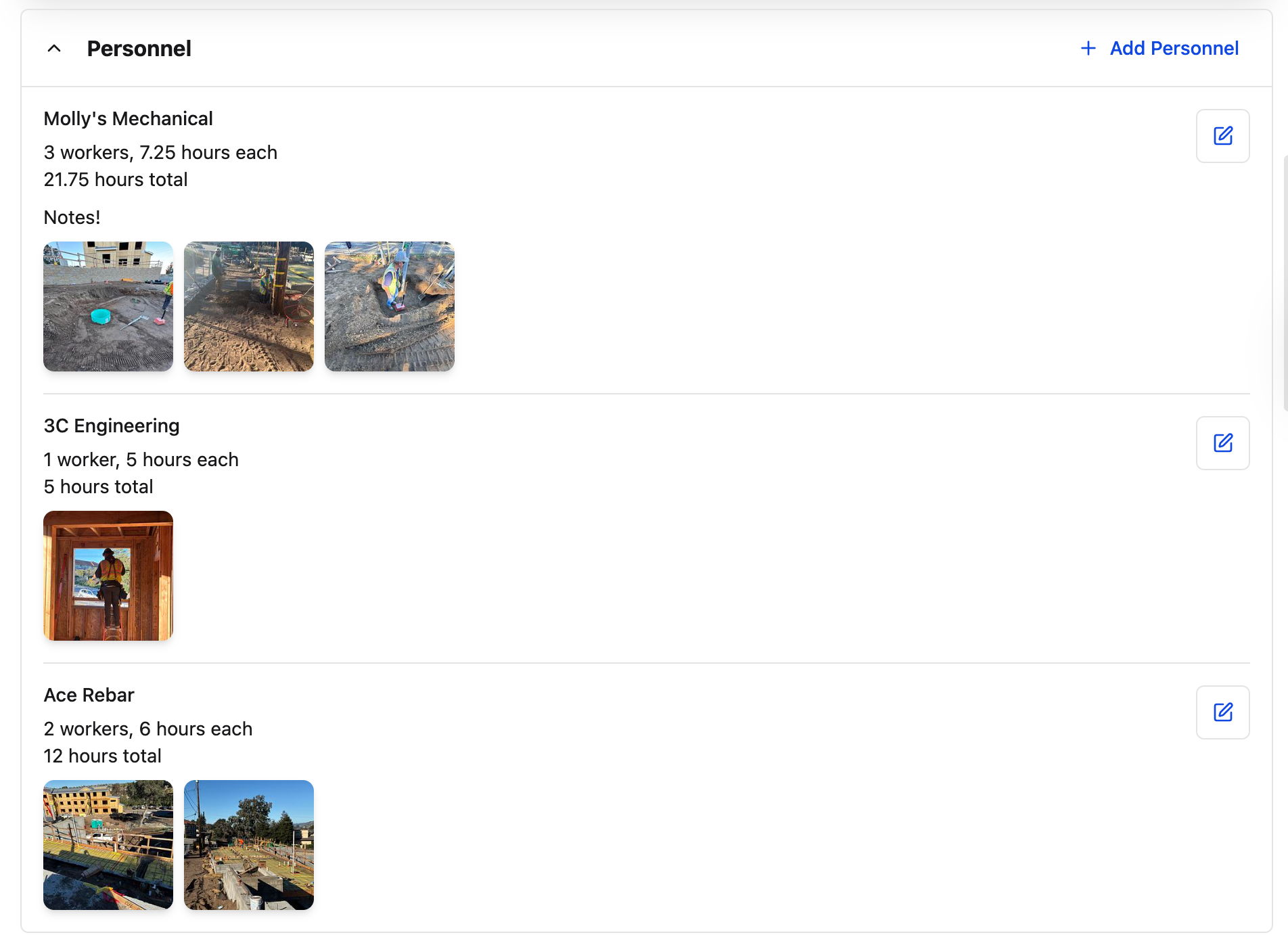
Once all personnel are logged, they will appear in the order in which they were added, with the total number of hours for convenient viewing.
Your Organization's Hours
To log your own employees' hours, simply click + Add Employee, select or search the employee name, and input the number of hours worked.
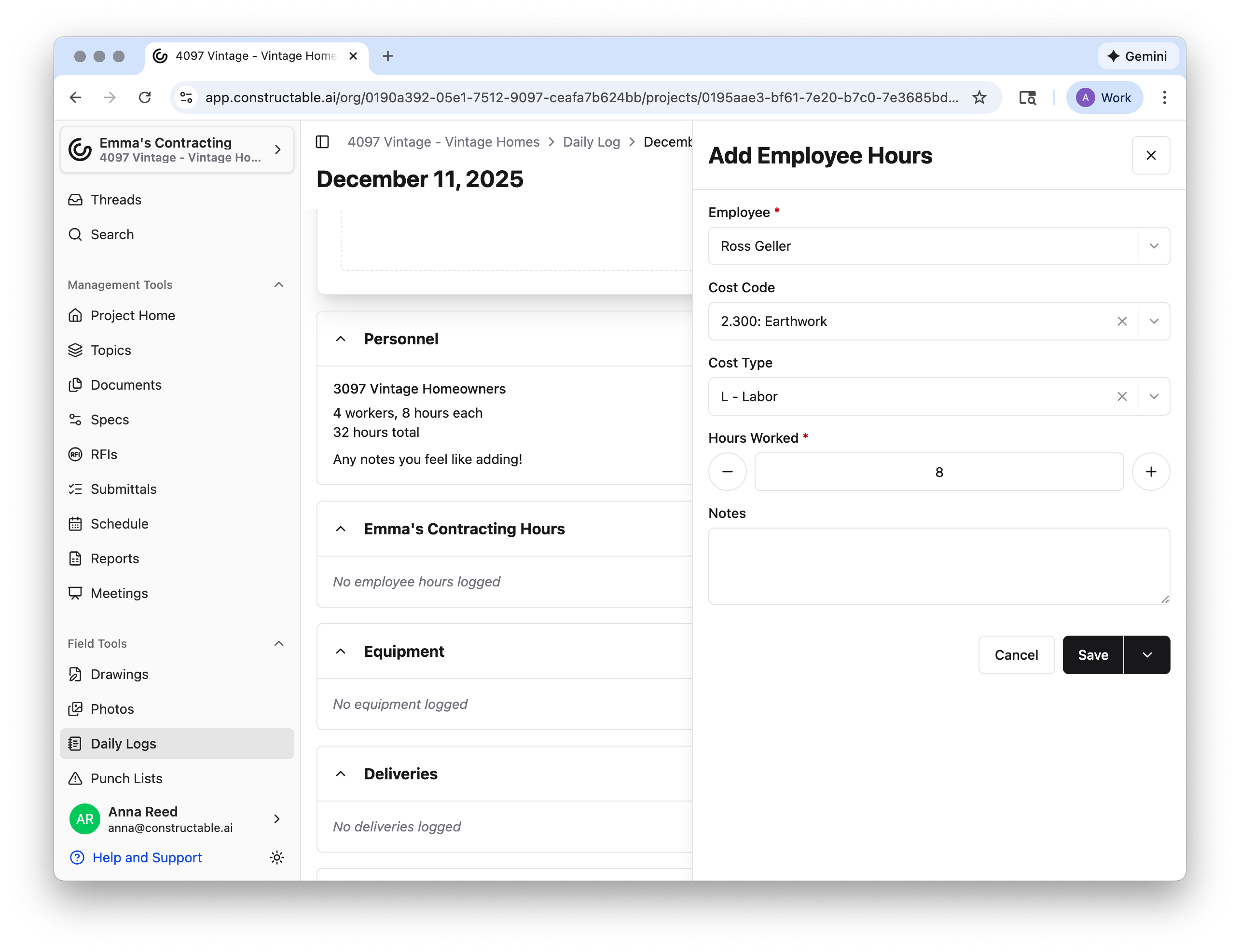
Note: You can also include a Cost Code or Cost Type for each employee, though this is not required to log hours.
Equipment
To track equipment used for the day, select + Add Equipment. From there, input the name of the equipment—you can also include any information related to inspection, such as the time and any notes.
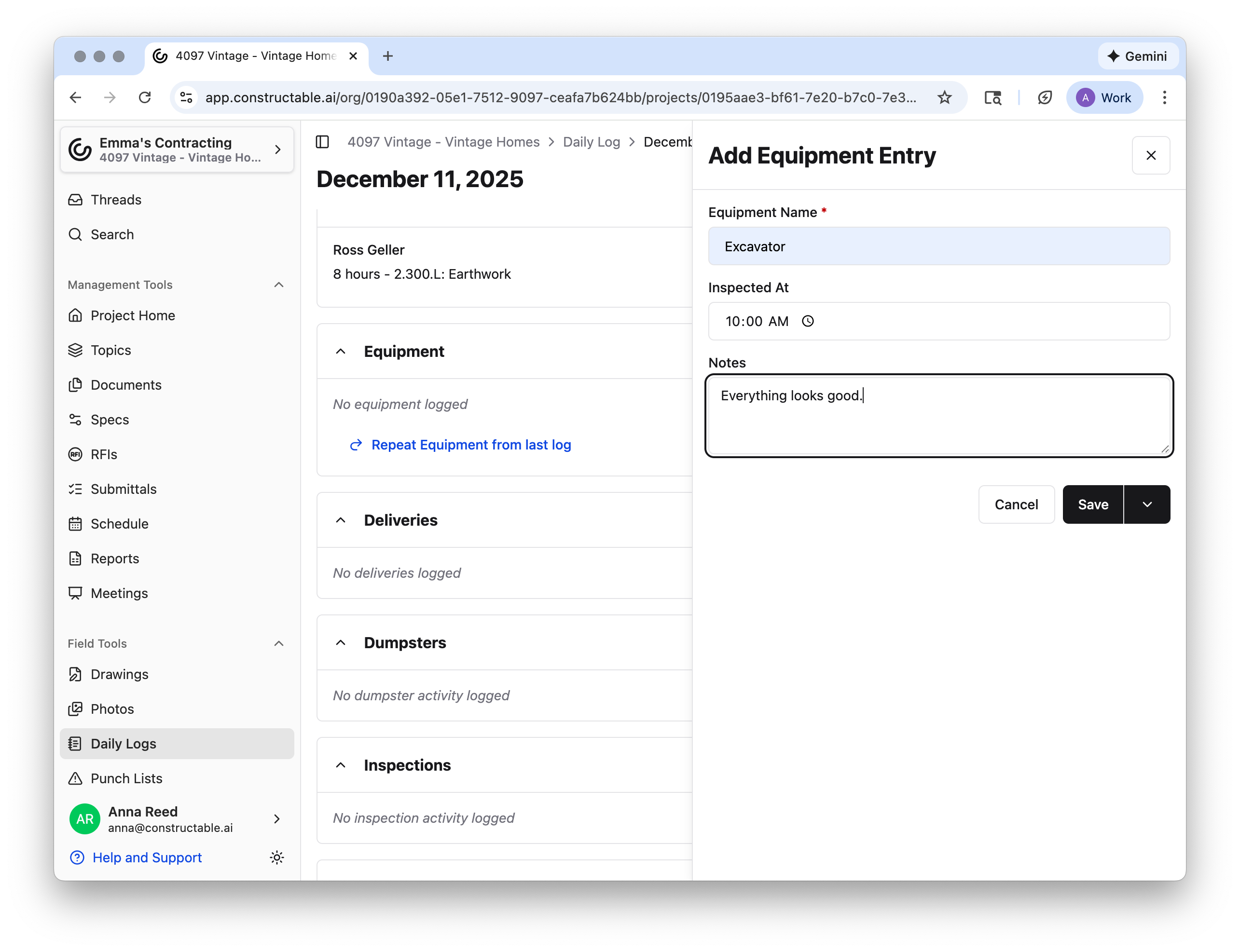
Pro Tip: To save time, you can click Repeat Personnel/Employee Hours/Equipment from last log and edit from there if you need to make any changes!

Deliveries
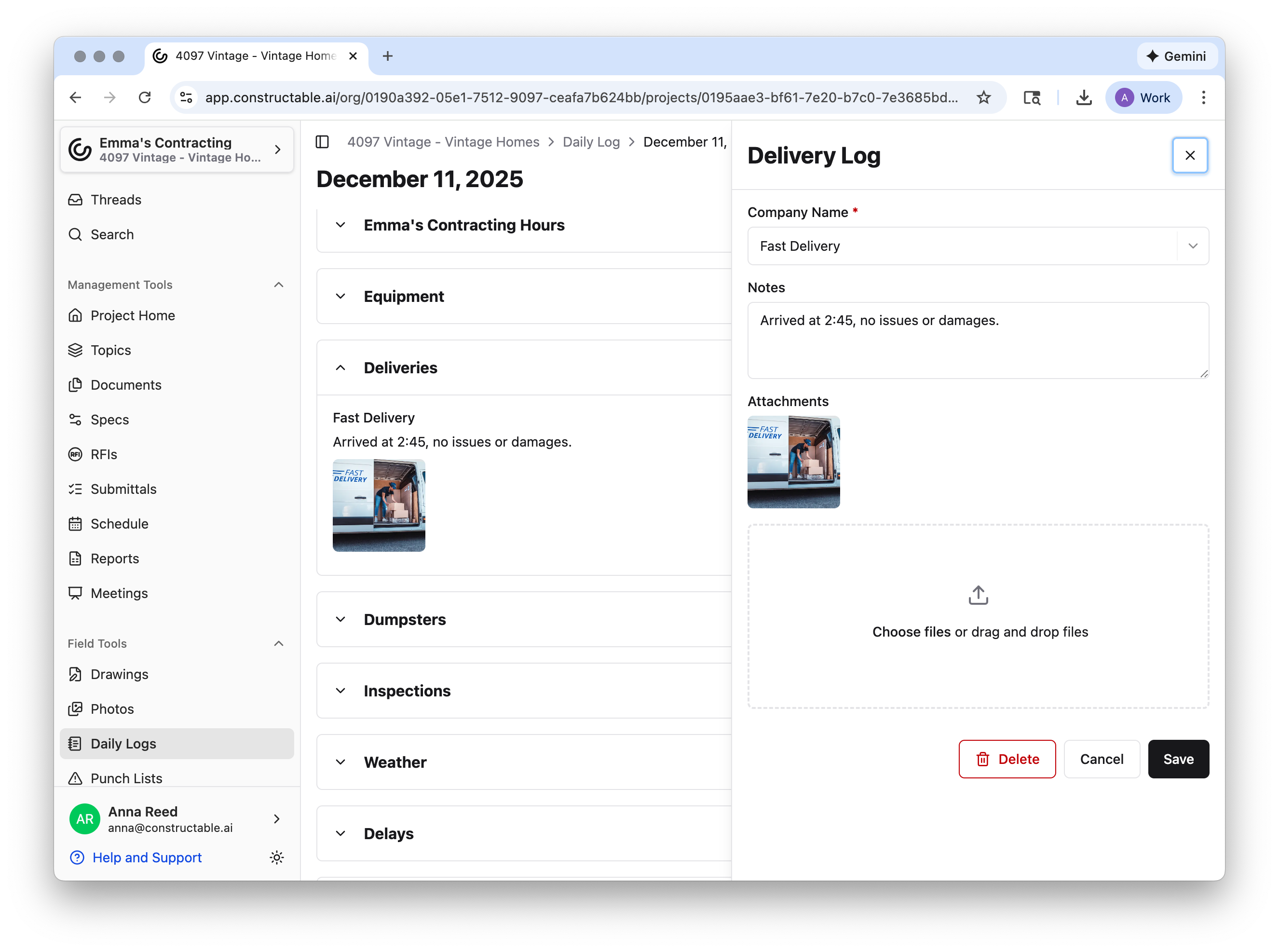
Easily keep track of deliveries by clicking + Add Delivery Log, selecting or searching the name of the company, and adding any notes or attachments.
Dumpsters
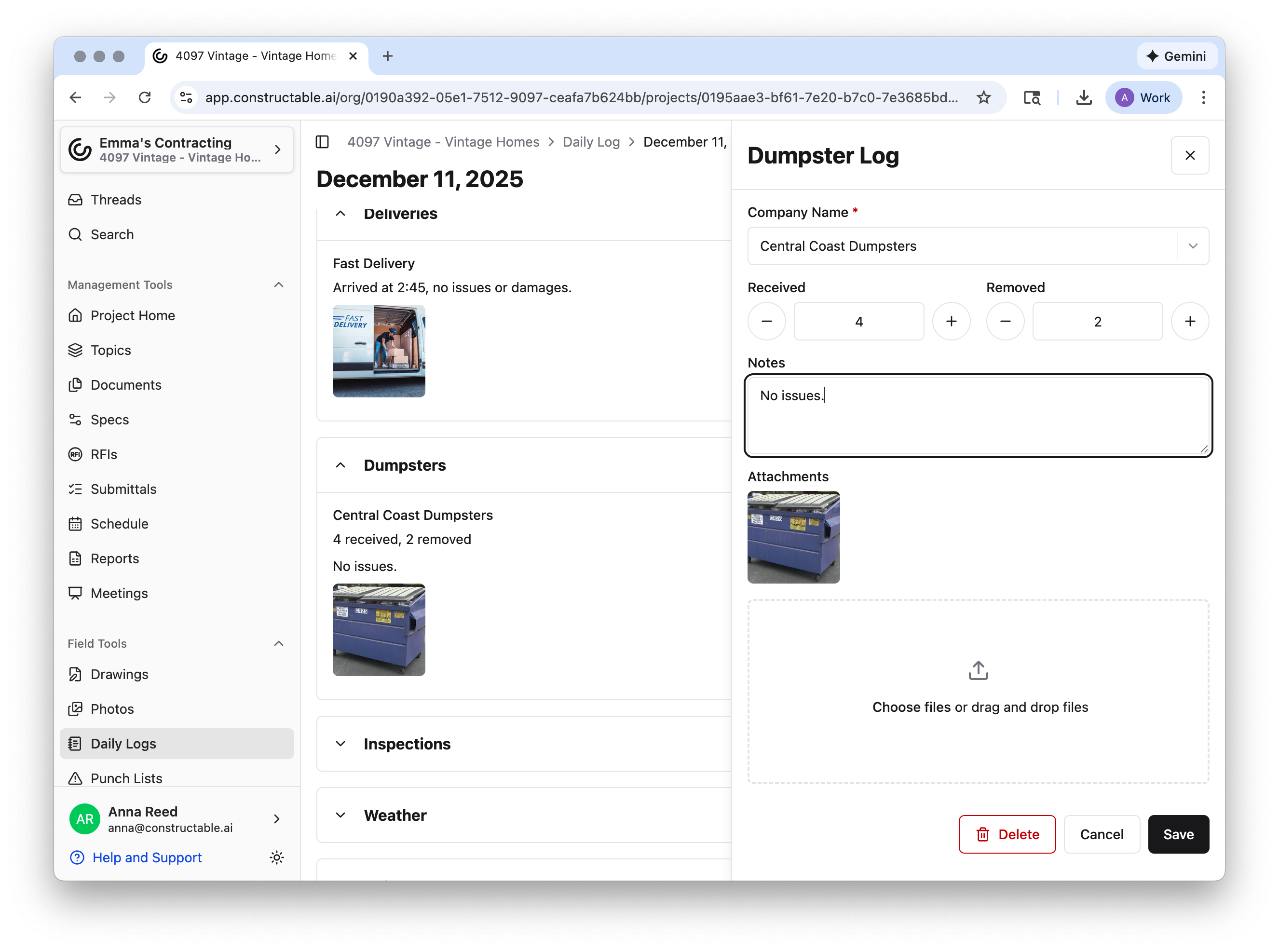
Keep up to date on dumpster delivery/retrieval by clicking + Add Dumpster Log. With this feature, you can keep track of the company, how many dumpsters were received or removed, and any other information you feel is relevant through the Notes or Attachments sections.
Inspections
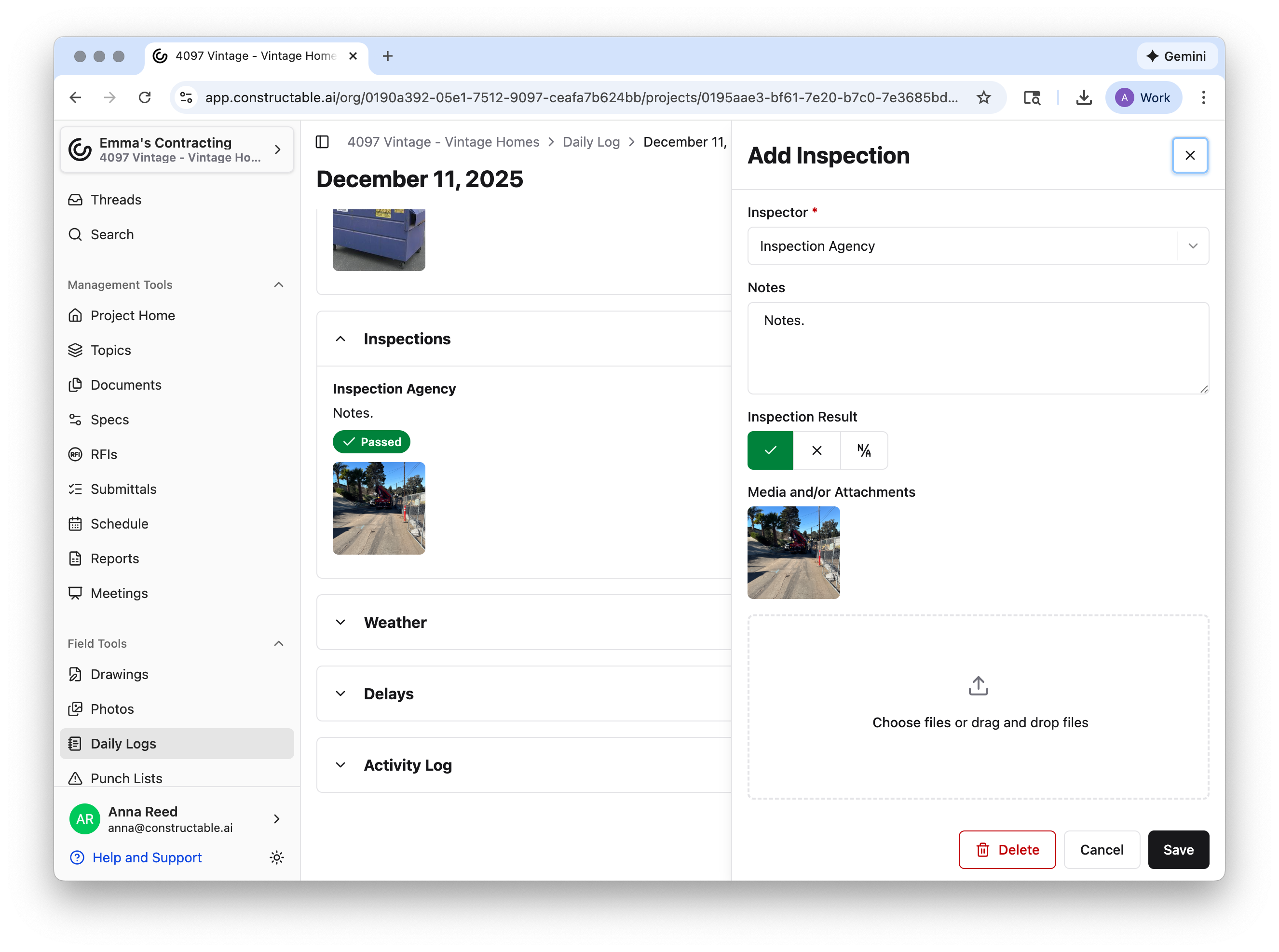
Similarly, log inspections by selecting + Add Inspection. From there, you can select or search the inspector's name, add any notes, add the inspection result (Pass, Fail, or N/A), and include any media or attachments related to the inspection.
Weather
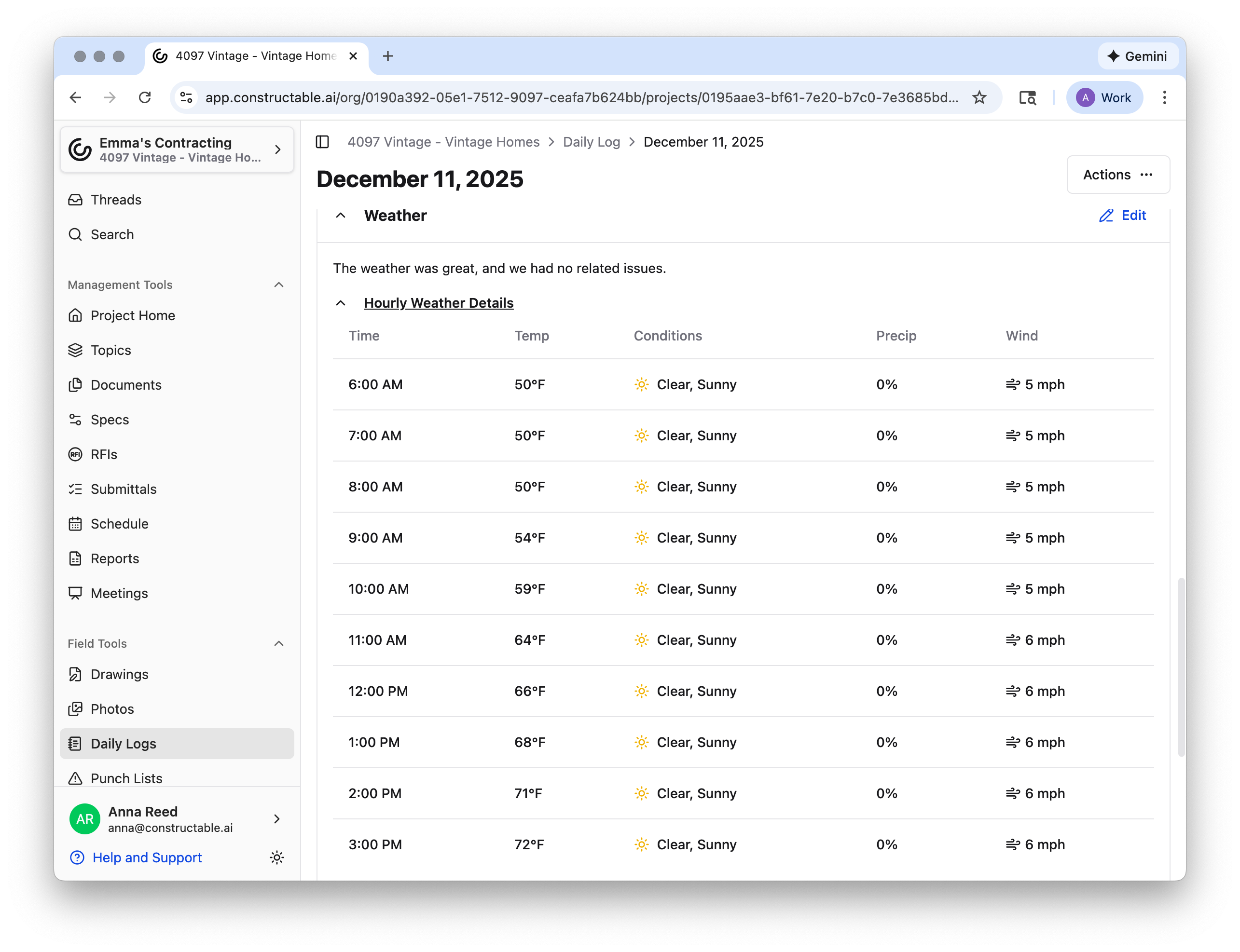
The hourly weather log for the location of your project is automatically recorded in this section. To view, click the dropdown menu Hourly Weather Details. This chart includes the local time, temperature, conditions, precipitation, and wind from 6:00 AM to 3:00 PM. If you’d like to add your own notes related to the weather and conditions for the day, click Edit, type your notes, and remember to Save.
Delays
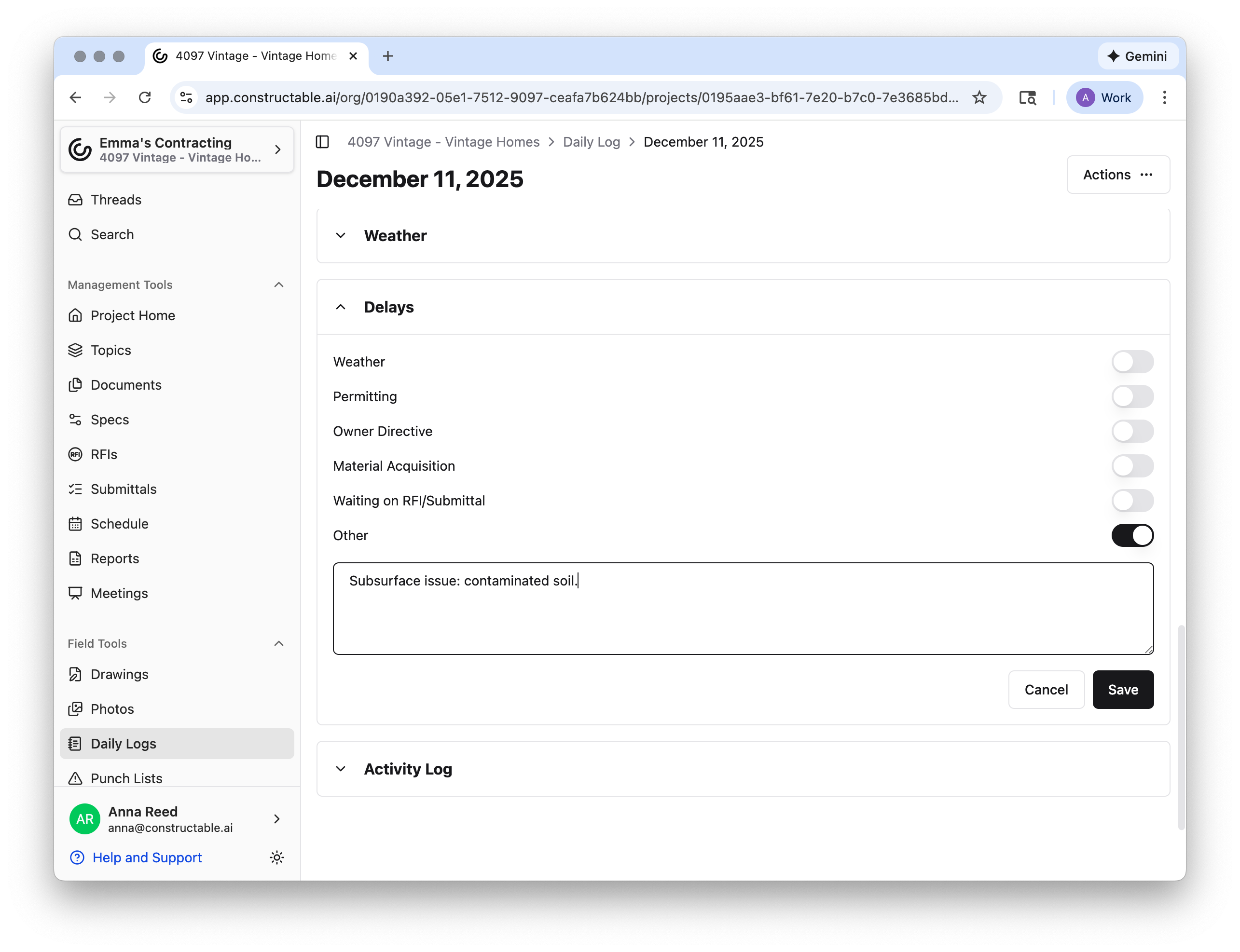
To log any delays, click Edit and select from our default list: Weather > Permitting > Owner Directive > Material Acquisition > Waiting on RFI/Submittal > Other
If you have any delays that don’t fit into our default categories, no worries! Select Other and include details in the textbox.
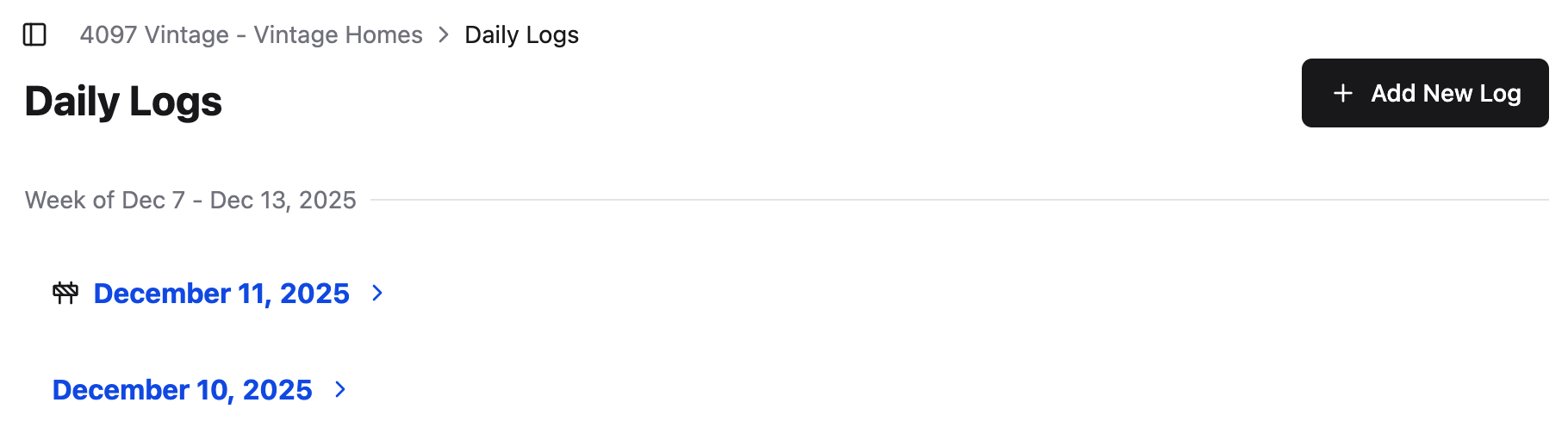
Note: If you log any Delays, then a roadblock icon will appear next to the proper date in the central Daily Logs page.
Actions
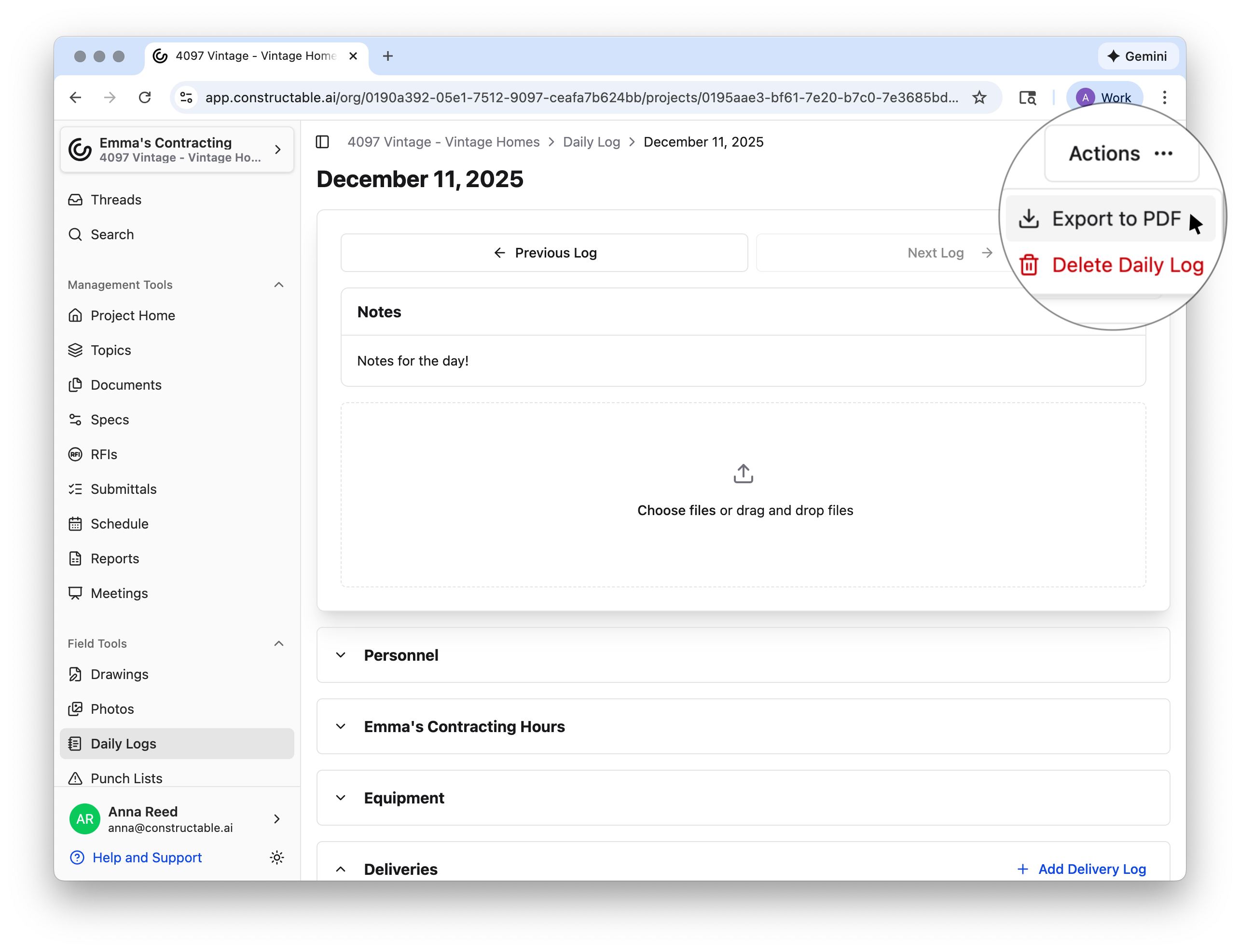
Quickly download a Daily Log as a PDF by selecting Actions -> Export to PDF in the top right corner. You can Delete Daily Log from the Actions button as well.
The PDF report will include all details and photos attached in the Daily Log.
Pro Tip: All photos attached to Daily Logs can be found in the "Photos" tab, located in the sidebar just above the Daily Logs tab. They will automatically appear in their own Album, titled Daily Log Photos, for quick access.
Daily Log Section Settings
If you’d like to exclude any of these sections from your Daily Log, all you need to do is go to My Account -> Organization Settings -> Daily Log Settings -> Edit, toggle off whichever section you’d like to disable, click Save, return to your Daily Log, and the disabled section will disappear. Repeat these steps to enable any section as well!
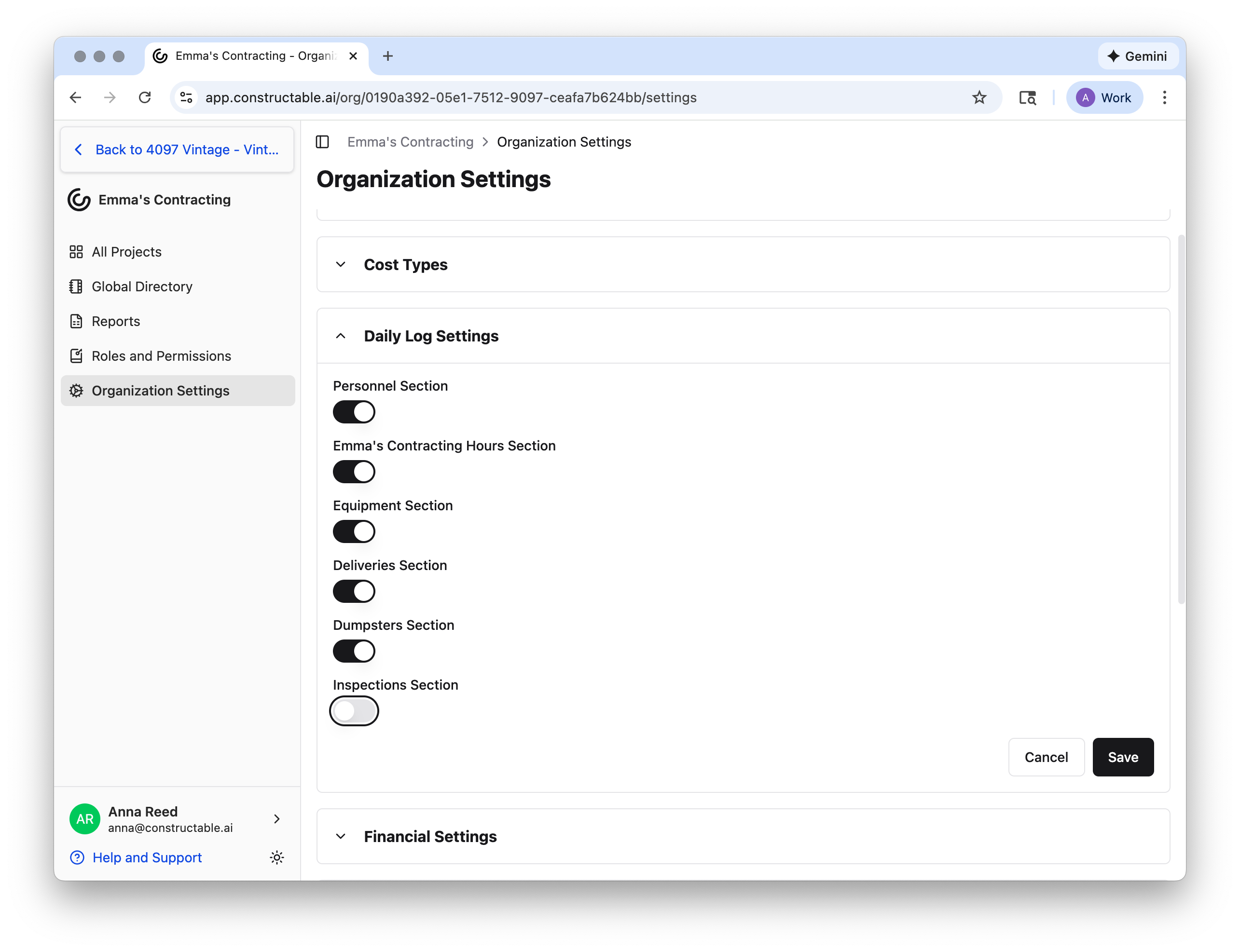
Note: To edit Section Settings, you need the correct permissions. If you don't see the option to edit, check with your Manager or Admin.
Usage Permissions
Who can view and edit the Daily Logs?
The Daily Logs are defaulted to be available only to the organization's Admin, Managers, and Employees. Users who fall in those categories are automatically able to view, create, and edit Daily Logs. If you cannot find the Daily Logs, it is likely because you do not have the proper permissions. Check with your Manager or Admin if you're unsure or have questions about your permissions.
Learn more about permissions here: 📄 Roles and Permissions