Drawing Areas
Last updated: December 22, 2025
Overview
Drawing Areas allow teams to organize plans for projects that include multiple layouts within the same job site. This article explains what Drawing Areas are, how to create them, and how to navigate among them within the Drawings workflow. Using Drawing Areas helps keep plans for different lots, buildings, or units clearly separated while remaining part of the same project.
What is a Drawing Area?
A Drawing Area helps organize plans for projects with multiple layouts on the same job site, such as different lots, buildings, or units.
How To: Create a Drawing Area
To create a Drawing Area, you must make changes within the Project Settings. To do this, navigate to the Project Home in the sidebar, then click Edit in the “Project Settings” box.
Just below the “Project Cover Image” file upload, there will be a checkbox labeled “This project has multiple Drawing Areas.” Click the checkbox and begin naming your Drawing Areas. To add more Drawing Areas, select + Add Drawing Area. Make sure to Save Project Settings, and then navigate back to the Drawings workflow to view your new Drawing Areas.
How To: Navigate Among Drawing Areas
Once you’re back in the Drawings tab, you will notice at the top that the page is titled “Drawing Area Name - Drawings.” The dropdown menu just below that will also tell you which Drawing Area you’re currently viewing. To switch among Drawing Areas, click on the dropdown menu titled “Drawing Area” and select the desired Area. You can add and edit drawing sets just like usual in each Drawing Area with no overlap occurring among the files.
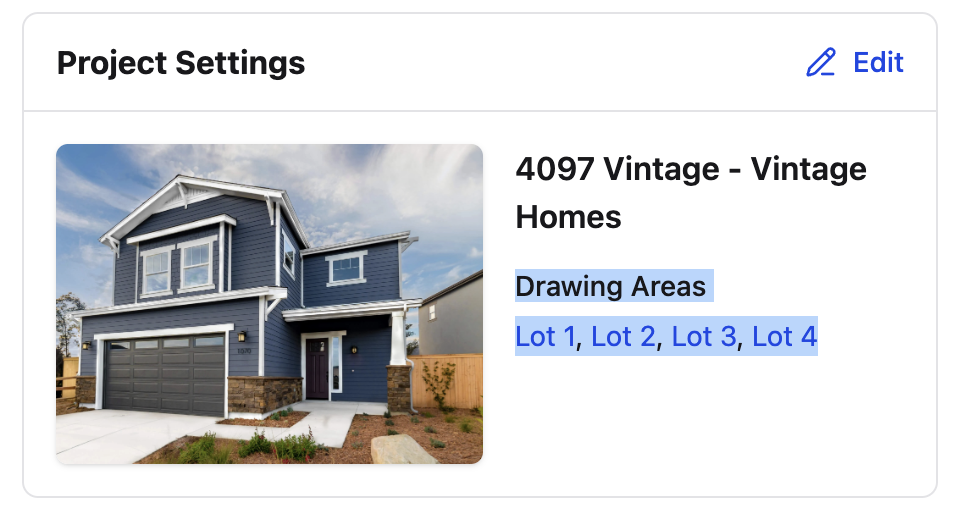
Pro Tip: You can quickly navigate to a specific Drawing Area from the Project Home. Once you save your Drawing Areas, they will be clearly visible in the “Project Settings” box, just below the project name. Select the desired hyperlinked Drawing Area to be redirected to that superset.
Frequently Asked Questions
Do Drawing Areas affect drawing revisions?
Revisions are tracked within each Drawing Area independently. Sheets with the same sheet number in different Drawing Areas are not linked as revisions.
Can I move drawings among Drawing Areas?
Drawings are associated with the Drawing Area to which they are uploaded. To move drawings to a different area, they must be uploaded to the correct Drawing Area.
Do Drawing Areas share drawing sets?
No. Each Drawing Area maintains its own drawing sets and superset, allowing plans to remain fully separated by layout.
Can I add Drawing Areas after drawings have already been uploaded?
Yes. Drawing Areas can be enabled and added through Project Settings at any time, though existing drawings will remain in their original area.
Who can create or edit Drawing Areas?
Only users with permission to edit Project Settings can create or modify Drawing Areas. If you are unable to add Drawing Areas, check with your Manager or Admin.