Understanding Drawing Revisions
Last updated: January 30, 2026
Overview
Revisions allow teams to track updates to drawings while ensuring everyone is working from the most current plans. When a sheet with the same sheet number is published more than once, the platform automatically creates a new revision and links it to the existing sheet history.
Revisions can be identified and accessed throughout the Drawings workflow, including during the review process, from the main superset, and within the drawing viewer. While the latest revision is always displayed by default to reduce confusion, previous versions remain easily available for reference when needed.
Clear revision indicators and built-in safeguards help prevent teams from working off outdated plans, while still preserving a complete version history for transparency and documentation.
Keep reading for a more in-depth explanation of how you can view and access revisions.
The Review Process
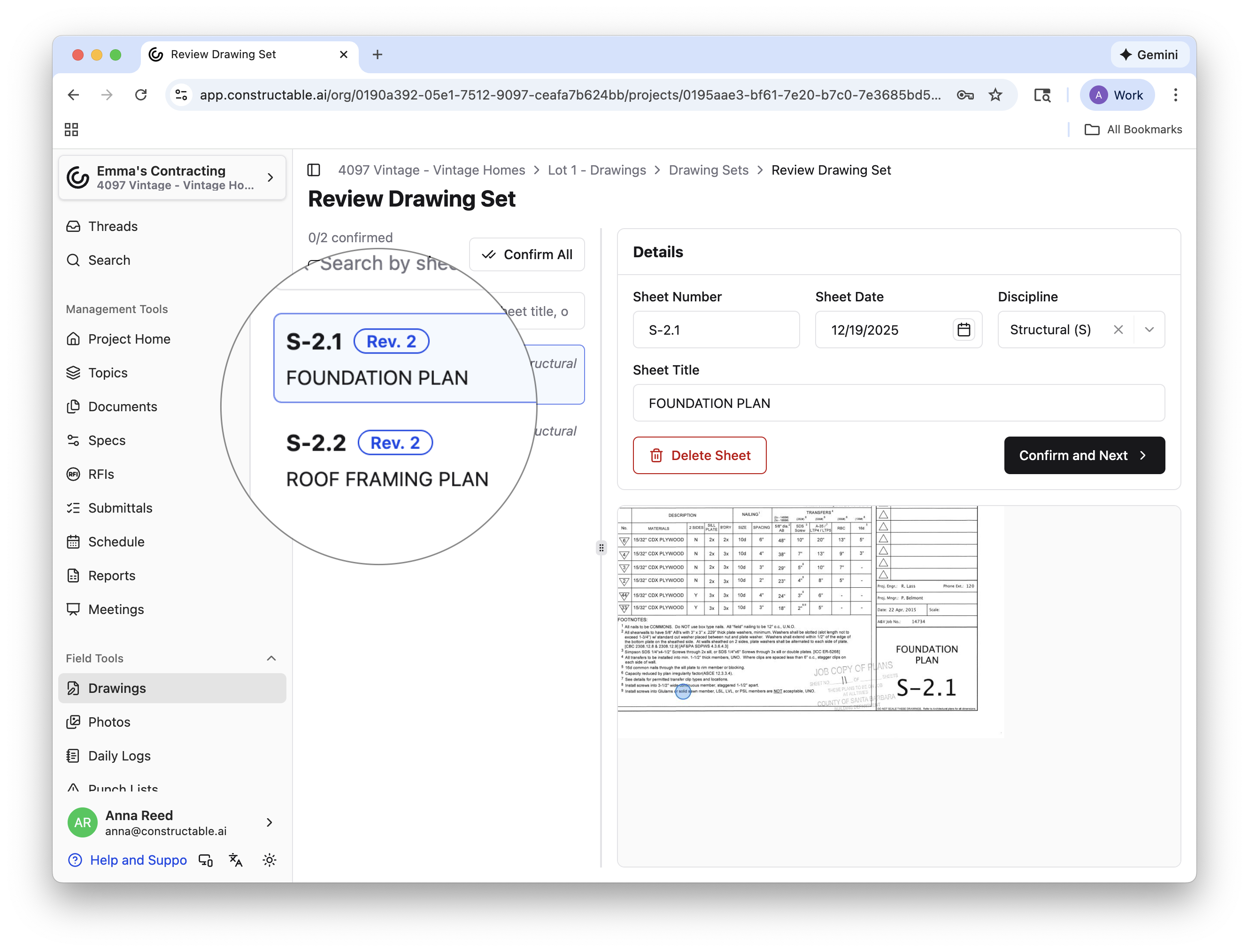
The review process is the first way to tell if a new drawing set will be a revision, and which revision the new sheet will be. While confirming the sheet details, note the revision number on the left in blue for convenience.
The Superset
After the new sheets are reviewed and published, the simplest way to see how many revisions a sheet has gone through is via the central superset page. This ensures that all team members are directed to the latest information.
By clicking the dropdown menu for a discipline, you can see in the third column, aptly titled “Revision,” how many revisions an individual sheet has gone through.
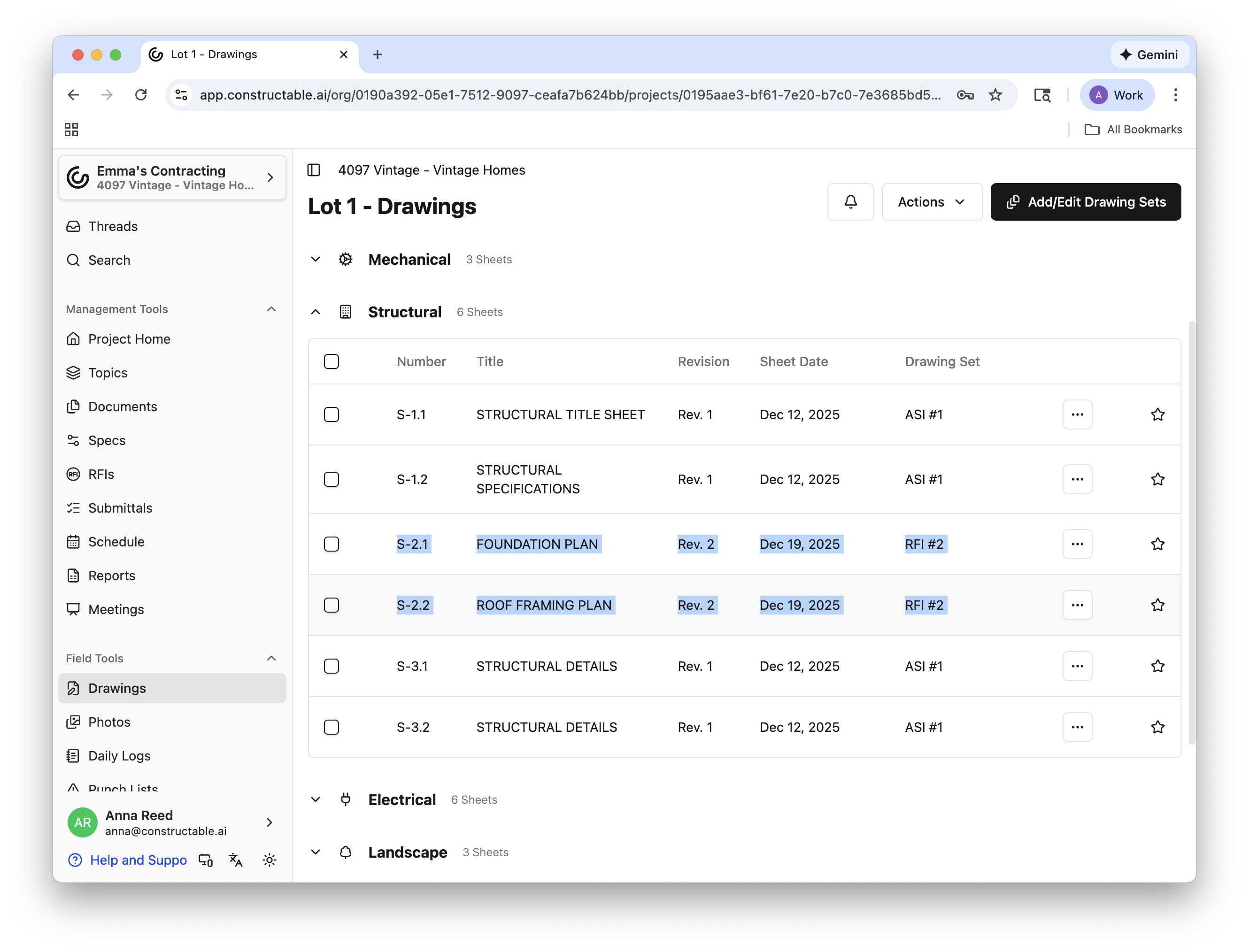
Note: Original uploads of sheets are labeled “Revision 0” to clearly denote them as the first uploaded version.
Drawing Viewer
If you open a sheet in our drawing viewer, you will also be able to tell what revision the sheet is on at the top, next to the sheet’s name. You can navigate quickly through the revision history of the sheet by clicking Rev. # and selecting the desired revision from the drop-down menu. This will simply open that revised sheet in the same view as the previous one.
Note: If you open an out-of-date revision, our system will not let you forget it, by telling you so in red at the top of your drawing viewer. This banner also has a hyperlink that will take you back to the most current revision to ensure you don't work off of outdated plans.
Our drawing viewer also offers multiple viewing options for all sheets. If you would like to utilize these options with revisions, you can either open the revision in another tab, open the revision in split view, or overlay two revisions on top of each other. To do so, simply click on the same Rev. # dropdown at the top and click the corresponding buttons.
See more about the many features in our drawing viewer here: 📄 Drawing Viewer Overview
Frequently Asked Questions
What triggers a new revision?
A new revision is automatically created when a sheet with the same sheet number is published more than once. The platform uses the sheet number to determine revision history.
What is "Revision 0"?
The first time a sheet is uploaded and published, it is labeled as Revision 0. This indicates the original version of the sheet before any revisions were issued.
If I publish a new revision, will the old one disappear?
No. All previous revisions are retained and remain accessible for reference. While the latest revision is shown by default, earlier versions can be viewed through the drawing viewer.
Why don't I see my revision in the superset?
Revisions only appear in the superset once they are published. If a revision is still in review or part of an unpublished drawing set, it will not be visible in the superset.
How do I know I'm viewing the latest revision?
The platform always displays the most recent revision by default. If you open an older revision, a visual warning appears in the drawing viewer with a link to return to the latest version.
Can I compare different revisions of a sheet?
Yes. Revisions can be opened in split view, separate tabs, or overlaid in the drawing viewer to visually compare changes between versions.
Who can publish a revision?
Only users with permission to publish drawings can make a revision visible to the project team. Unpublished revisions remain hidden until they are published.
Do revisions affect existing markups, RFIs, or quality list items?
Publishing a revision does not remove existing markups or related items; they will simply appear in the new revision. Teams should review updated drawings to confirm that any existing comments or issues still apply to the revised plans.