Using Pins in Drawing Viewer
Last updated: February 4, 2026
Overview
Pins allow you to connect drawings directly to project communication and workflows. By placing pins at specific locations within a drawing, you can add comments, track quality list items, manage RFIs, and extract text—keeping important context tied to the exact area of the plan it relates to.
This article explains how to use pins in the drawing viewer, including creating and managing comments, quality list items, and RFIs, as well as extracting text from drawings for reuse elsewhere.
Comments
To pin a comment directly on a drawing sheet, select the comment icon under “Pins” in the sidebar in the drawing viewer.
Click the location you’d like to place the comment, then select Create new Comment here… You can always Cancel if you created the pin accidentally. This will allow you to draft a comment thread in that location. Along with your comment, you can also record your screen and include any media and photos you’d like.
Similar to when commenting on Photos, you can tag any member of your project team to ensure they receive a notification, or you can tag another drawing sheet.
Note: For your comment to save, it must be added to a specific Topic. Select from a pre-existing topic, or + Create New Topic. For more details, see Using Topics.
Quality List Items
You can pin quality list items directly on drawing sheets within the drawing viewer. Create a new item within the drawing viewer, or you can link a pre-existing item from our Quality Lists workflow.
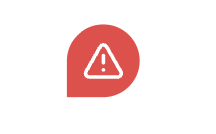
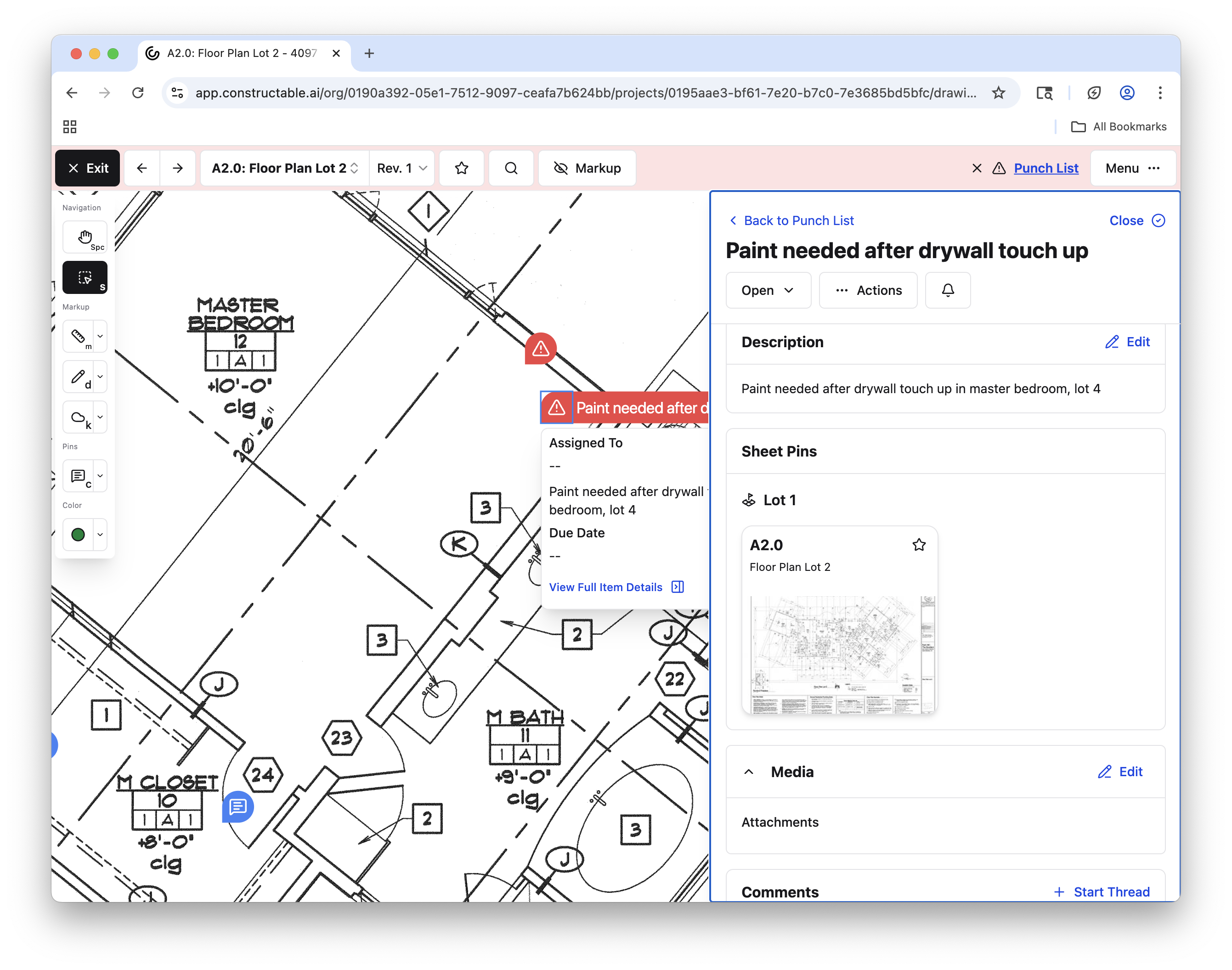
To create a quality list item pin on a drawing, select the punch item icon under “Pins” and click a location on the drawing to pin the item. It will place a red pin with a caution icon and offer a choice: “Create new Punch Item here…” or “Pin existing Punch Item here…” You can also select Cancel if you mistakenly place a list item.
If you select Create new Punch Item Here…, a window will appear that allows you to input all the proper information for the new item, just as you would in the Quality Lists workflow. This includes the list type, a description you can use to Autofill other key information, the ability to assign the item to a team member, add attachments, and set a due date, among others. Make sure to Save when you finish!
You can also select Pin existing Punch Item here… This allows you to select items from your existing lists that already live in the Quality Lists workflow under the “Field Tools” menu.
Read more about Quality Lists here: 📄 Using Quality Lists
Note: Any quality list items created within the drawing viewer will be automatically added to the Quality Lists workflow.
After a pin is created, you can view the item details, edit them, and move the pin around by clicking the pin with the select tool.
RFIs
An RFI can similarly be created or selected as a pin within the drawing viewer.
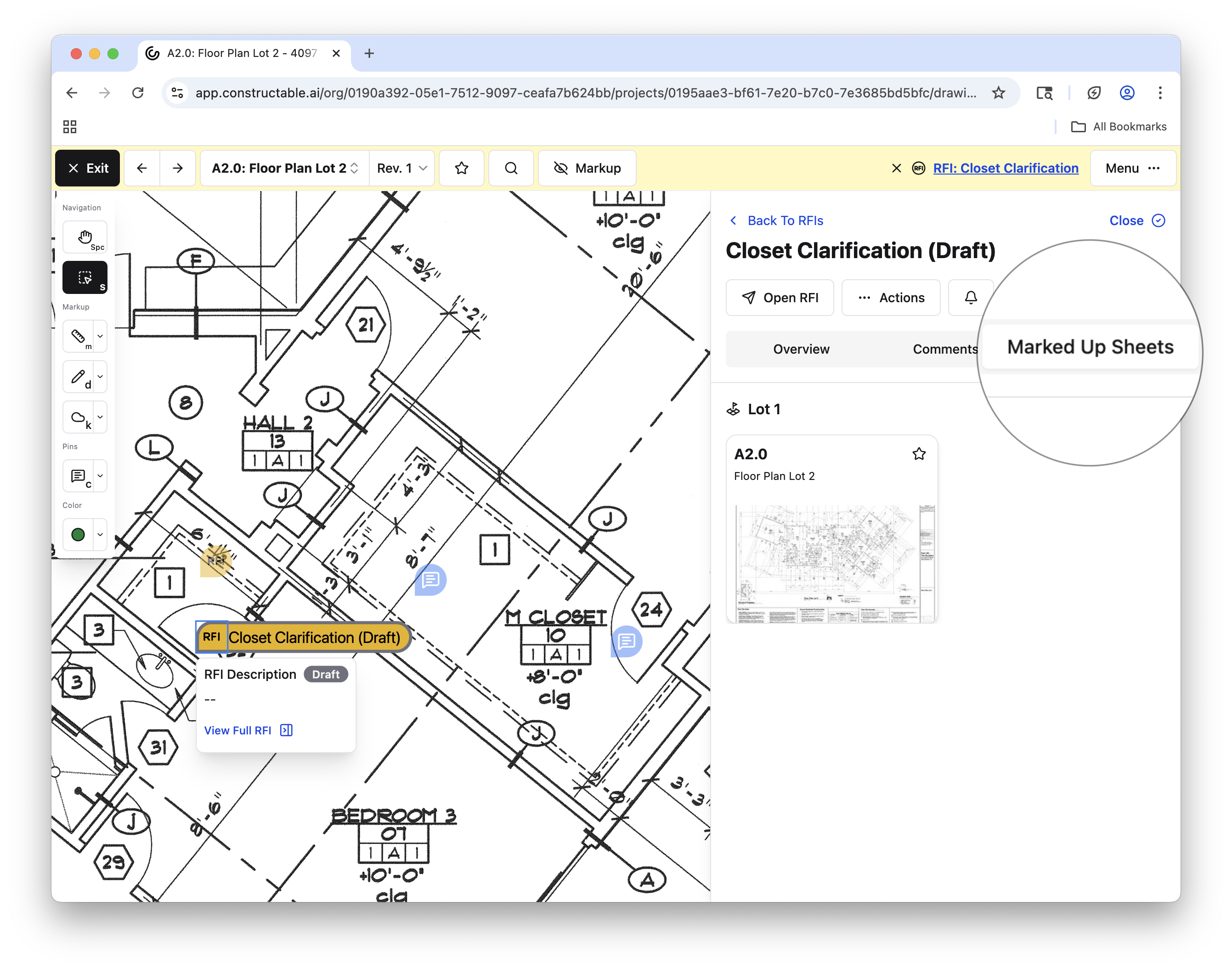
Click the RFI icon, and choose where on the sheet to place the pin. You will be able to either Create new RFI here… or Pin existing RFI here… This process is very similar to pinning quality lists as detailed above.
Manage pinned RFIs here in the drawing viewer or in the RFIs workflow under "Management Tools." Move a pinned RFI, edit its details, add comments, and more by clicking the pin with the select tool.
Read more about our RFIs workflow here: 📄 Using RFIs
Extract
Our extract tool lets you copy both the words and the formatting from a sheet and paste them elsewhere.
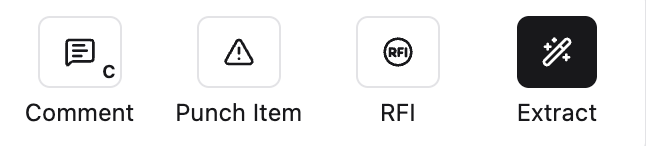
Select the extract tool from the sidebar and click and drag to select the area of text you wish to extract. Select Extract Text in Area... and our software will begin the process. Depending on how much information is in the selected area, this may take a few moments. Once the extraction is complete, the options to Copy Rich Text, Copy Plain Text, or Clear Extraction Area will appear, with a preview of the extracted information just below.
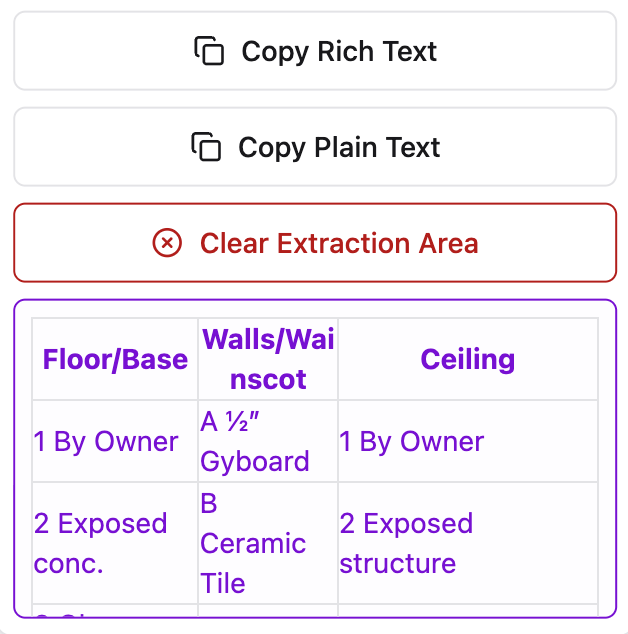
Copying the rich text will copy not only the words from the extraction area but also the formatting. Copying plain text only copies the words themselves, not the formatting. Please take a look at the video below for a clearer visual of the extraction process.
Frequently Asked Questions
My pins disappeared out of nowhere. Did they all get deleted?
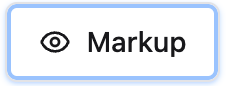
Your pins are likely hidden because you turned on the “hide markup” toggle. This button lets you hide markups, making the drawing itself more visible if you have a lot of markups on the sheet. To turn it off and make your markups visible again, select the Markup button with the eye icon next to it (pictured below).
Why are some pins transparent and others fully opaque?
If certain pins appear to be transparent, it is because you are not currently in their topic, RFI, or quality list. While in a specific topic, RFI, and list, any markups you make will be added to that specific log. If you open a specific topic, all pins related to that topic will appear opaque. Any pins not belonging to that topic will appear transparent.
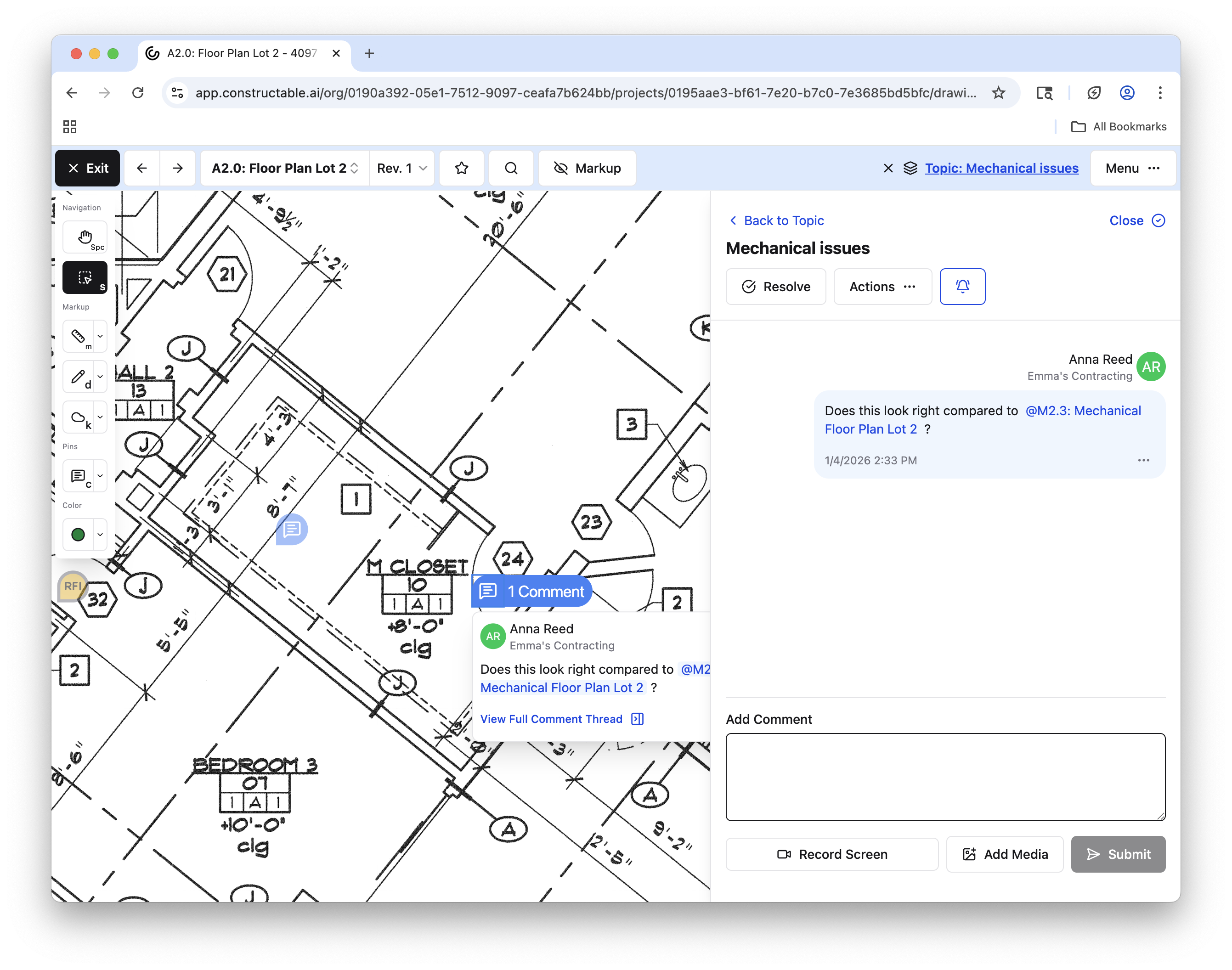
Note: If you don’t have a specific topic, RFI, or quality list open in the drawing viewer, all pins will appear opaque as usual. It is only once you open a particular thread that unrelated pins will become transparent.
Can the same quality list item or RFI be pinned to multiple drawings?
Yes. A single item can be pinned in multiple locations if needed, providing context across different sheets.
If you open a specific quality list, all sheets pinned with the same list item will appear if you scroll down, under “Sheet Pins.”
If you open a specific RFI, all sheets with the same pin will appear if you select the button on the far right labeled “Marked Up Sheets.”
Do pinned comments, quality list items, or RFIs trigger notifications?
Yes. Notifications follow the same rules as their respective workflows, including mentions, assignments, and updates. If you’d like to change your notification settings for a specific quality list or RFI, select the bell icon within the desired list or RFI, and edit your settings as you wish. Read more about notification settings here: 📄 Notification Preferences
Do pins move to a new revision if one is added?
Yes. Pins remain associated with the latest revisions of the drawing sheet. If a pin was added to revision 1, it will appear on every revision moving forward unless deleted. Pins created on a later revision will not, however, appear on previous iterations of the drawing sheet.
Are pins shared across split view or overlay mode?
Yes. Pins remain visible and interactive regardless of whether you’re viewing drawings in single view, split view, or overlay mode.