Using Markups: Annotation Tools
Last updated: February 2, 2026
Overview
Annotation tools allow you to add visual notes and callouts directly to drawings. This article covers how to use annotation tools—including freehand markups, text, and shapes—to communicate design intent, highlight areas of interest, and provide clear visual feedback within the drawing viewer.
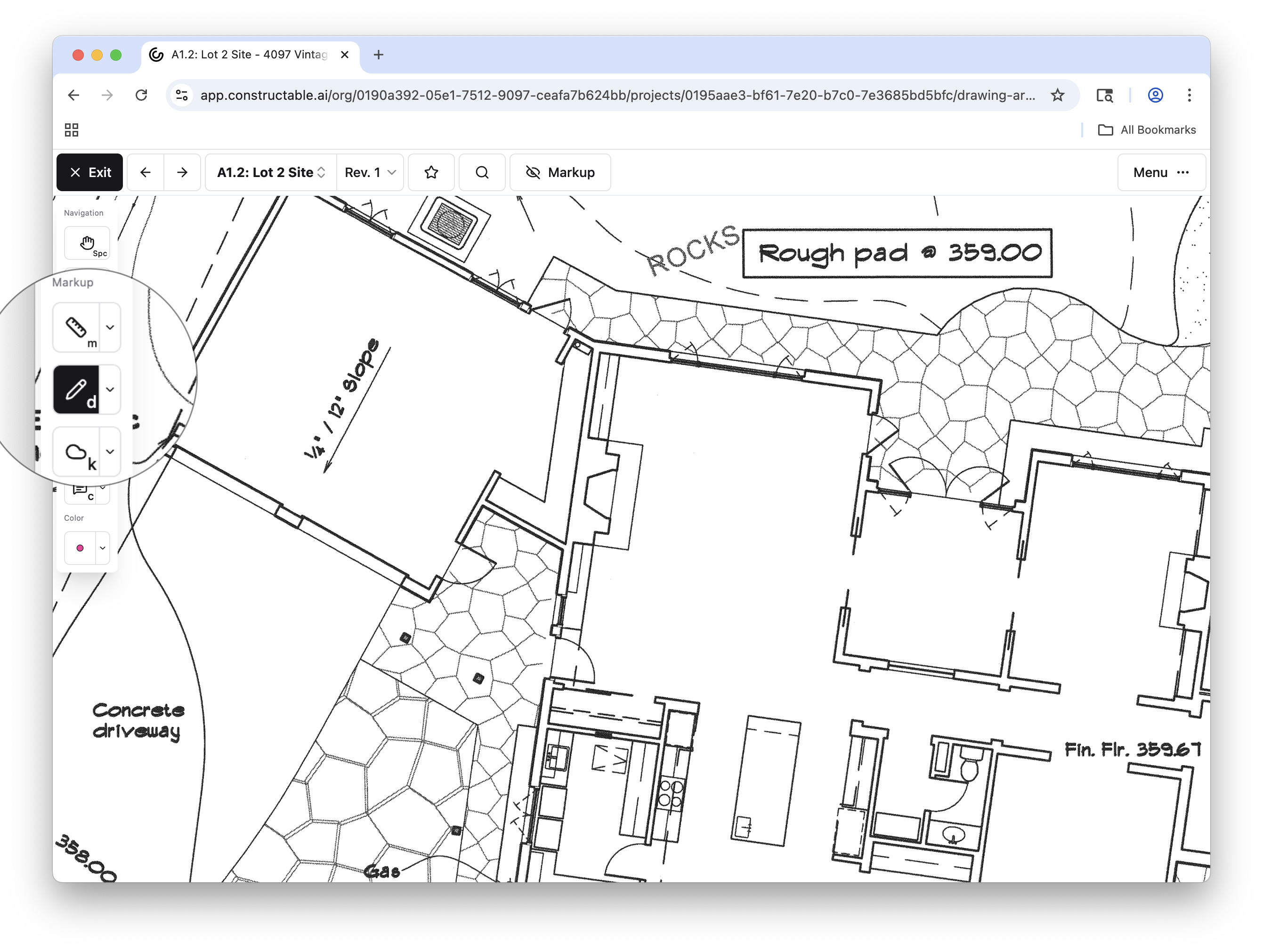
The main annotation tools are found below the measurement tools in the sidebar, under "Markup."
Note: Markups are not saved unless they’re added to a topic. For more details, see Using Topics.
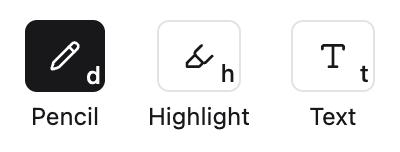
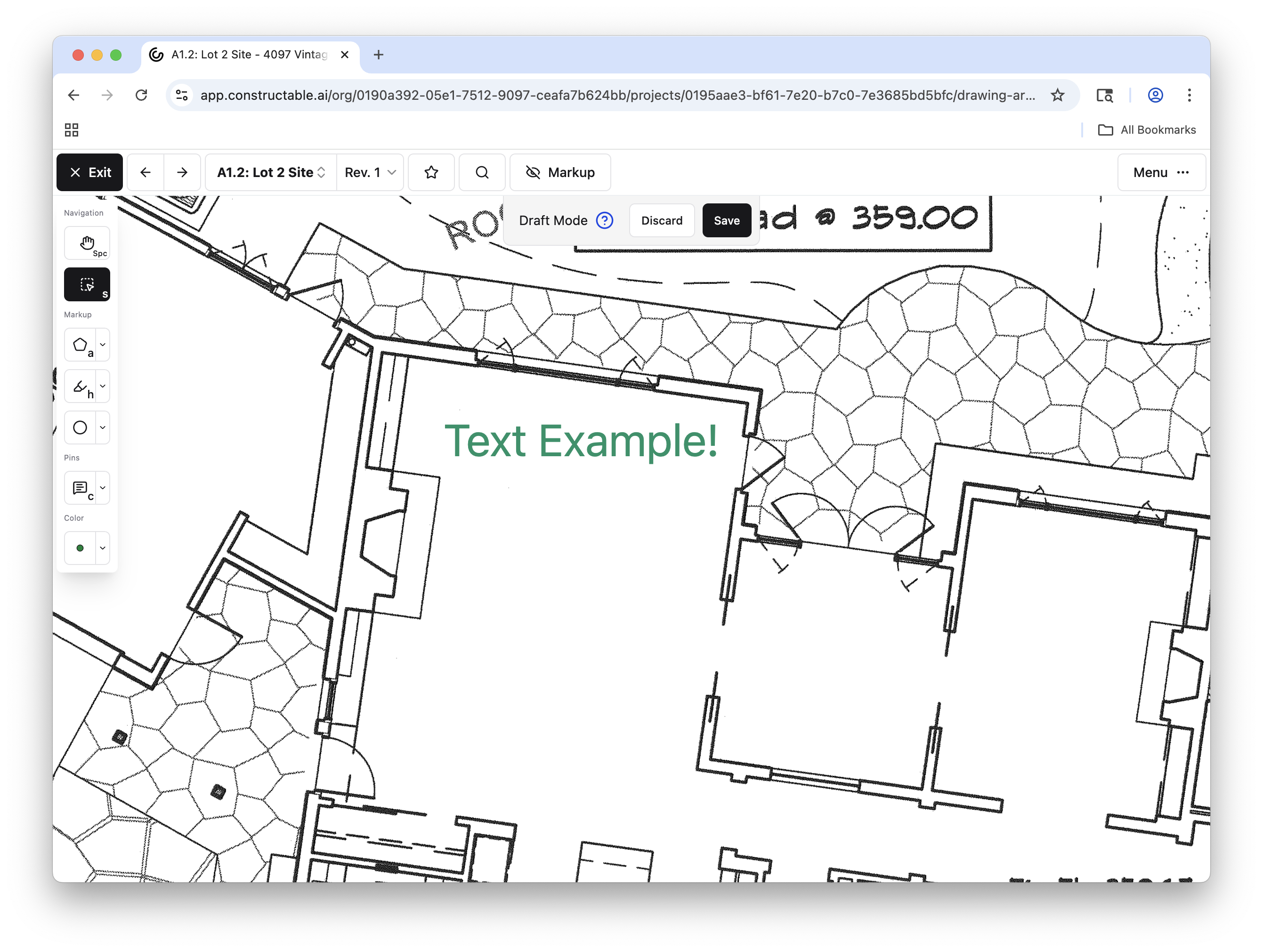
Pencil
The Pencil tool allows you to draw freehand directly on a drawing. This is useful for quick sketches, rough notes, or circling areas that need attention without using predefined shapes.
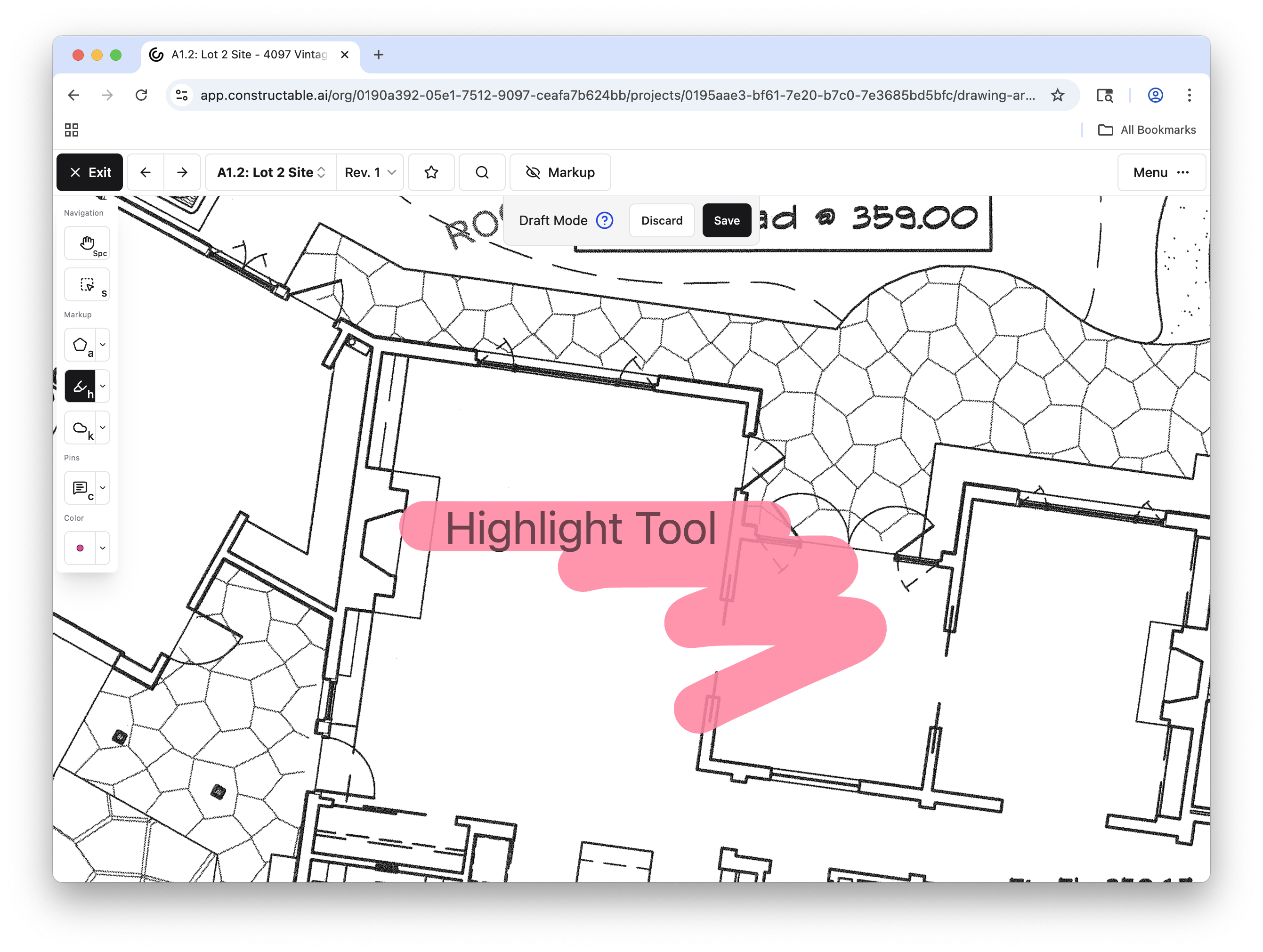
Highlight
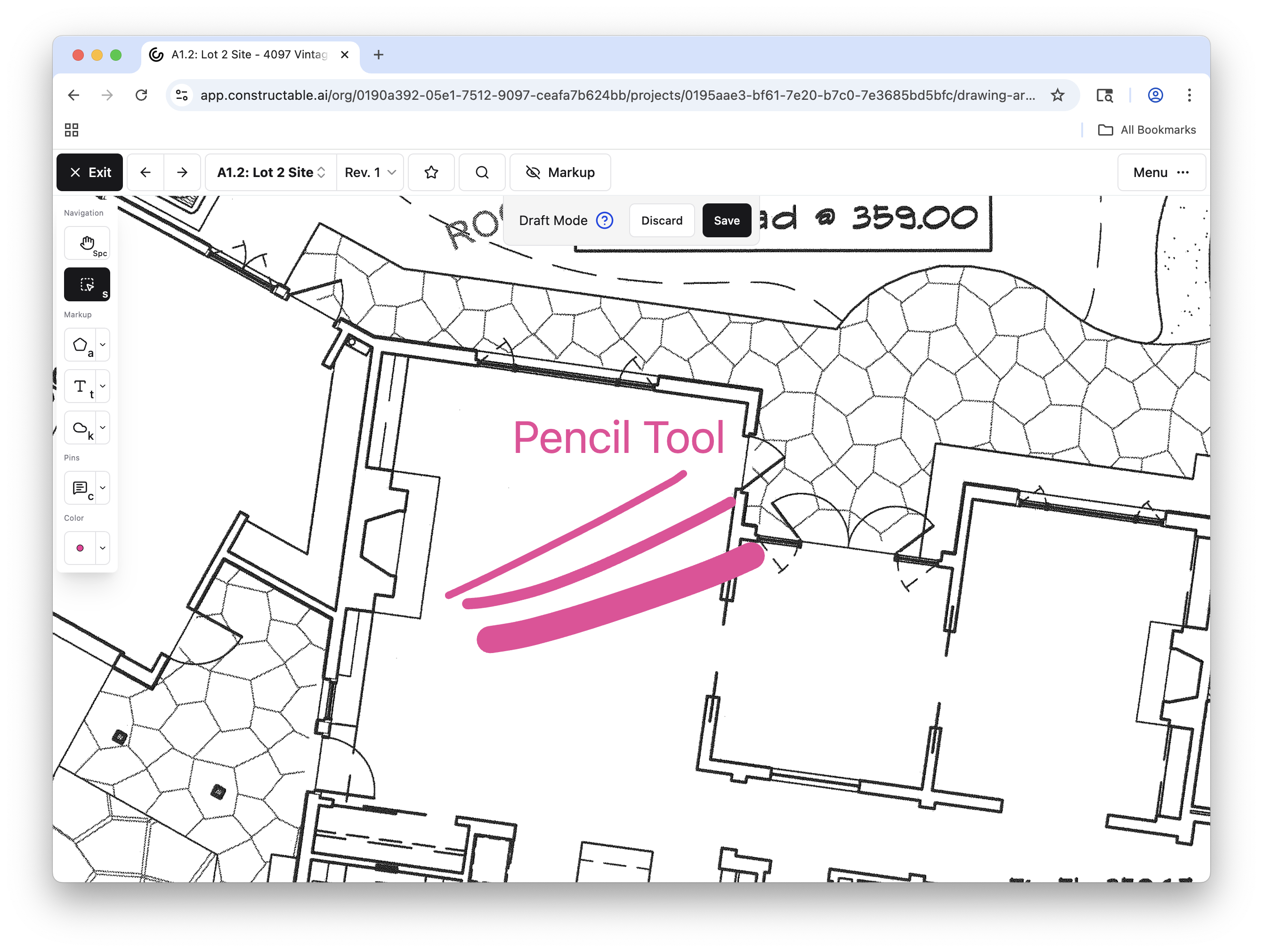
The Highlight tool lets you emphasize specific areas of a drawing without fully obscuring the content beneath it. Highlights are ideal for drawing attention to key notes, dimensions, or sections of a plan.
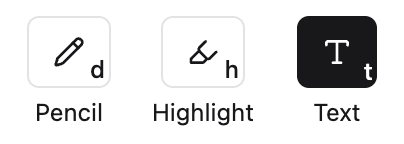
Text
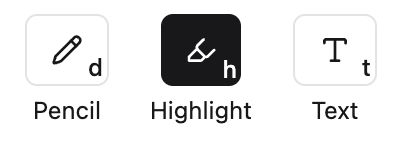
The Text tool allows you to place typed notes directly on a drawing. Text annotations are helpful for adding clear, legible comments or instructions that the project team can easily understand.
Shapes
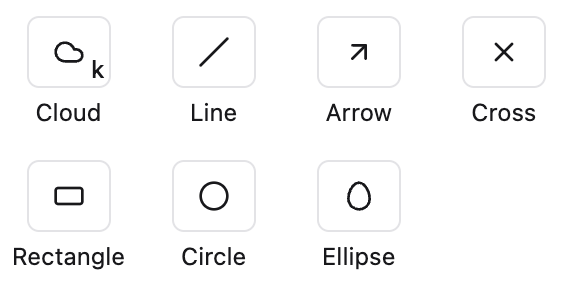
Shape tools provide structured ways to mark up drawings and clearly define areas, paths, or points of interest. Shapes are especially helpful when precision and clarity are essential.
Available shape tools include:
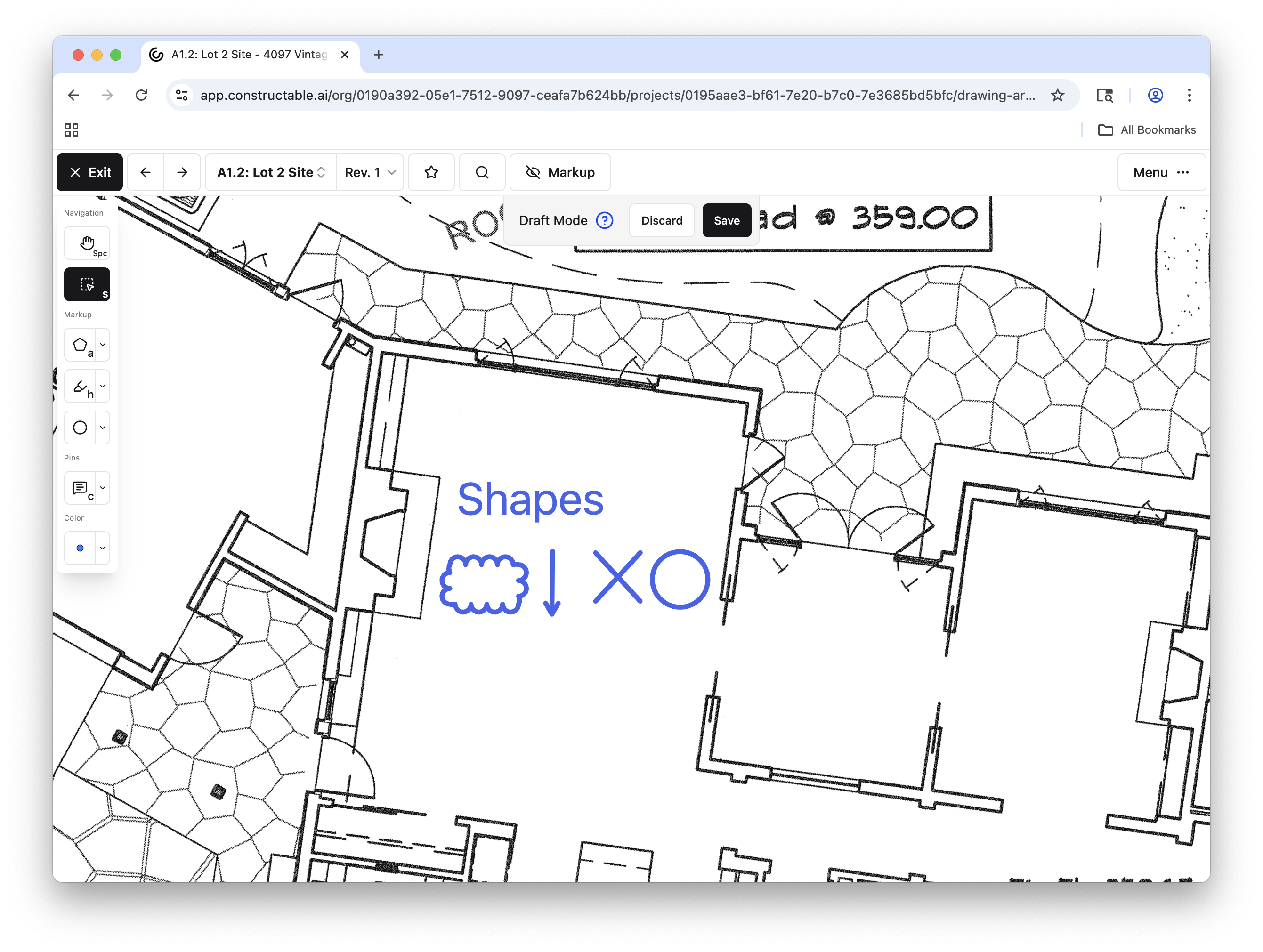
Customizing Annotation Tools
You can customize annotation colors and thickness using the Color dropdown in the sidebar. Colors and size can be selected either before placing an annotation or after, by using the select tool to choose an existing markup and updating its color and size.
Choose from three size options and eight color options to keep markups consistent and easy to read.